Add AI Voiceovers to Canva
If you are a content creator making videos, social media reels, or presentations in Canva, you no longer have to record your own audio. The official Audeus for Canva App allows you to generate high quality voiceovers directly in Canva. To learn more about Audeus for Canva, visit the Audeus for Canva page.
How to Install and Connect Audeus in Canva
You can find the integration in the Canva App Directory or install it directly inside your editor:
Prefer to watch instead? This short video walks through the entire process, from installing the app to adding the voiceover to your timeline.
How to Sync Audio to Your Canva Designs
- Log into your Canva account and open a Video or Presentation project.
- In the left-hand editor sidebar, click on Apps. You can also click here to open the Audeus app page on Canva directly.
- Search for Audeus and click the app logo to open it.
- Click Connect to link your Audeus account and sync your premium settings and voices.
Designing Your Voiceover Script
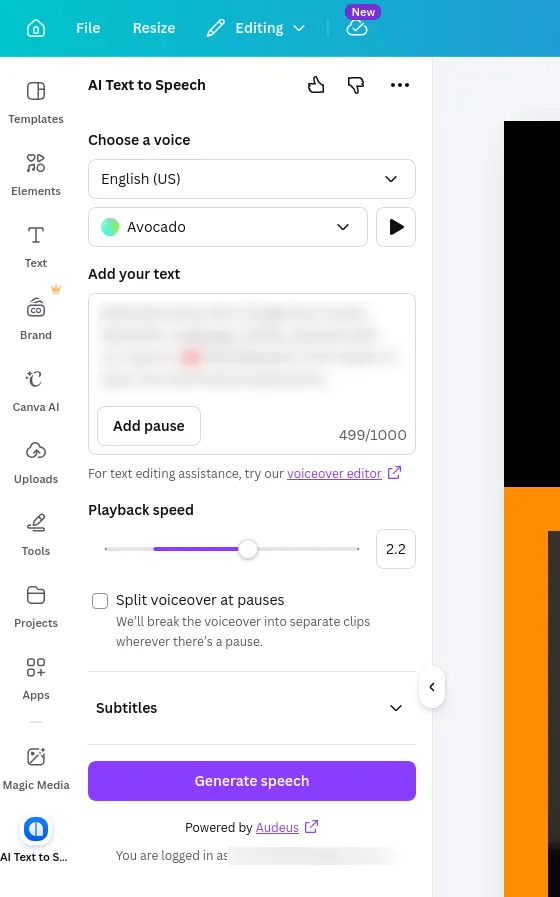
Once the app is open in your sidebar, you can type or paste your narration script. Audeus provides advanced controls to customize the audio structure:
1. Adding Custom Pauses
To add natural pauses or breathing room between sentences:
- Click the Add pause button above the text box.
- Select a preset duration (ranging from 0.25 seconds to 1 second) or choose Use custom to configure a specific silence between 0.001 and 10 seconds.
- The pause is inserted directly into your script as a visual tag (such as [🛑:500]).
2. Splitting Voiceovers for Slide Syncing
If you are designing a multi-slide presentation or a video with multiple cuts:
- Check the Split voiceover at pauses checkbox.
- Audeus will split your voiceover into separate audio files wherever you have inserted a pause tag.
- When generated, each segment uploads to your Canva account and drops into your timeline as a separate audio track, allowing you to drag and align individual sentences to specific slides.
Generating Timed Subtitles (SRT)
Alongside your audio, Audeus automatically creates synchronized subtitles:
- After generating your voiceover, expand the Subtitles accordion in the sidebar.
- If you want word-by-word timestamps for dynamic text animations, check the Separate by word box.
- Click the Copy Subtitles button to copy the formatted SRT text to your clipboard.
- Paste the subtitles directly into Canva's text elements to sync them to your video timeline.
Frequently Asked Questions
Do I need a separate subscription to use Audeus in Canva?
The Audeus Canva integration is available to Audeus account holders. Free users can generate limited voiceovers, while Audeus Pro users have access to extended generation limits and HD commercial-grade voices.
Can I use the generated voiceovers for commercial projects?
Yes. If you have an active Audeus Pro subscription, you are granted full commercial rights to use the generated audio in monetized YouTube videos, client presentations, and social media ads. The Canva integration is available to all Audeus account holders. Free accounts can generate limited voiceovers, while Premium users unlock extended generation limits and HD commercial-grade voices.
Can I split the generated audio into separate segments?
Yes, absolutely! By selecting the Split voiceover at pauses option, Audeus renders separate audio tracks for each segment, making it easy to align individual sentences to specific slides on your Canva timeline.
Can I add custom silences or breathing room to my script?
Yes! You can click the Add pause button to insert specific pauses directly into your script. You can choose a preset duration or configure a custom delay between 0.001 and 10 seconds.
Are subtitles generated automatically?
Yes. Timed subtitles (SRT format) are generated alongside your audio files. You can copy the subtitles directly to your clipboard and choose whether to format them by sentence or word-by-word for kinetic text designs.
Does this work on the Canva mobile app?
Yes, absolutely! The Audeus integration is fully optimized for Canva on iOS and Android. You can access Audeus through the Apps menu inside the Canva mobile editor to generate voiceovers and copy subtitles on the go.