Listen to Web Articles and News
The internet is full of incredible long-form journalism, newsletters, and blog posts, but they are often buried under pop-up ads, video overlays, and cluttered layouts. You can bypass the mess by using the Audeus browser extension to read any standard webpage aloud in-place, or export articles to your library for listening later on a commute or while multitasking. See Audeus for Busy Commuters & Multitaskers for that workflow.
Install the Audeus Browser Extension
The Audeus extension works on all major desktop browsers. Make sure you have installed the extension for your preferred browser before starting:
- Install Audeus on Google Chrome
- Install Audeus on Apple Safari
- Install Audeus on Mozilla Firefox
- Install Audeus on Microsoft Edge
To ensure Audeus can parse web content automatically, make sure you have granted full site access permissions. You can read how to configure this in our Chrome Extension Setup Guide.
How to Read Web Articles Aloud
Audeus provides two simple ways to listen to web text directly inside your browser:
Option 1: Read the Entire Article with the Sidebar Player
- Open the blog post, news article, or Wikipedia page you want to read.
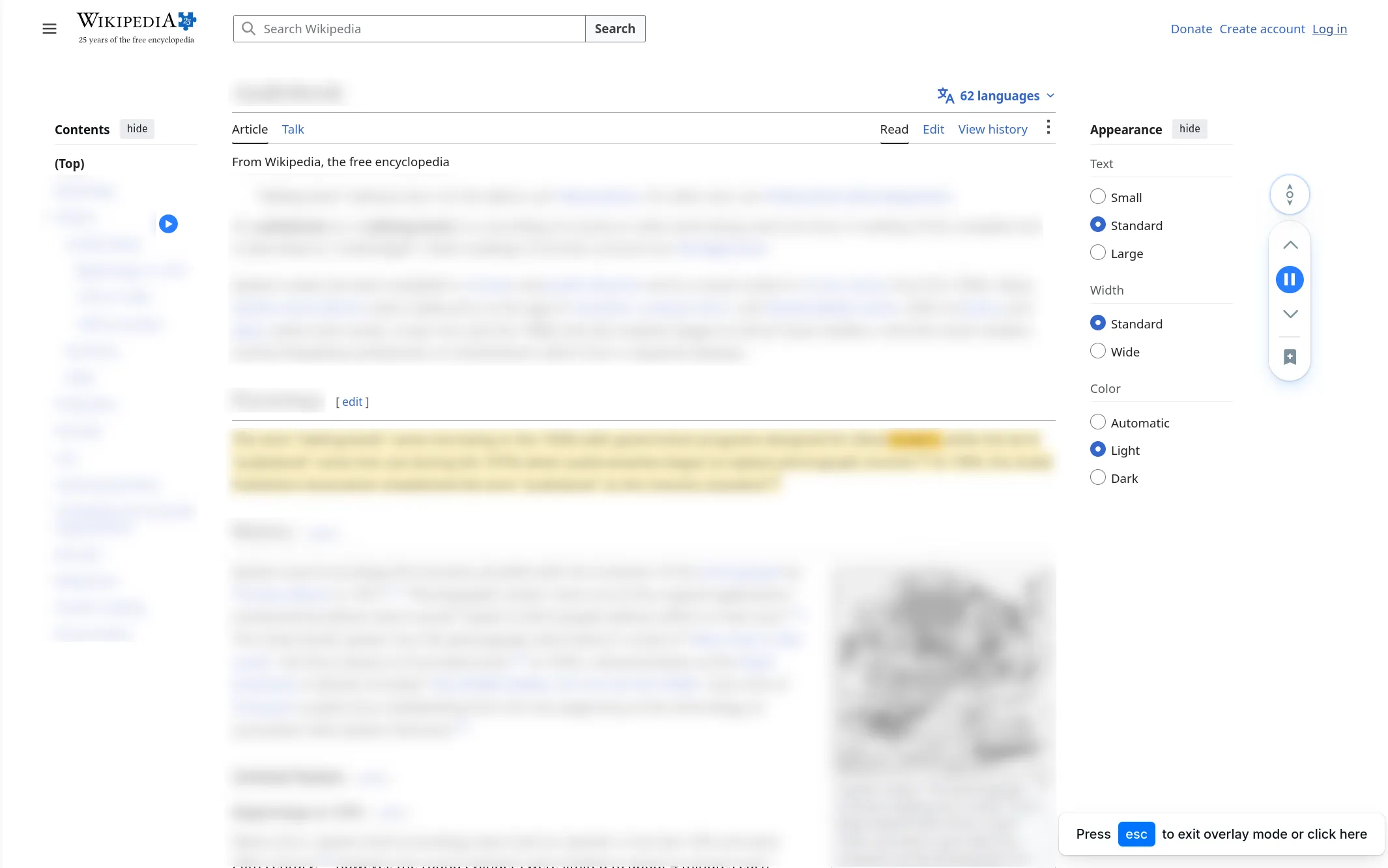
- Click the floating Audeus Play Button (floating handle) on the side of your screen, or click the extension icon in your browser toolbar.
- The Audeus sidebar player will slide out. Click Play to start listening. The player will automatically dim the background, highlighting the active sentence and word as the AI reads.
Option 2: Read Selected Text with a Keyboard Shortcut
- Highlight any specific text block on a webpage.
- Press Alt + Q on Windows or Option + Q on a Mac.
- Audeus will instantly read only your selected text aloud and clear the highlighting, letting you listen to snippets without opening the full sidebar player.
How to Save Web Articles for Offline Listening
If you do not have time to finish reading at your desk, you can easily send web articles to your phone:
- Expand the Audeus sidebar player on your browser page.
- Click the Save to Library button (bookmark icon) in the control panel.
- Audeus automatically strips away all ads, navigation menus, and footers, extracting only the clean article body.
- The article is saved directly to your cloud library and synced instantly to the iOS App and Android App.
Frequently Asked Questions
Will Audeus read webpage ads and sidebar links?
Audeus uses a smart readability parser that extracts the main article body. It automatically skips sidebars, navigation bars, pop-up ads, and footers to keep your listening experience clean and continuous.
Can I listen to selected paragraphs only?
Yes, absolutely! Highlight the specific paragraph or text block you want to listen to and press the keyboard shortcut Alt + Q (or Option + Q on a Mac) to start listening immediately.
Does the extension work on subscription paywalls?
The browser extension can only read text that is visually rendered and accessible on your screen. It respects paywalls and subscription screens.
How do I listen to saved web articles on my mobile phone?
Simply click the Save to Library icon in the browser extension toolbar. The article's clean text is uploaded to your account and synced in real time to your mobile app library.
Why is the floating play button not appearing on some pages?
If the button does not load, make sure the extension is enabled and has permission to run on all sites. You can follow the permission steps in our Chrome Extension Setup Guide.