Enable Auto-Scroll for Playback
When you are listening to long articles, research PDFs, or digital books, you should not have to constantly swipe your screen, drag a scrollbar, or click your mouse wheel just to keep up with the spoken narrator. The Audeus Auto-Scroll feature is designed to give you a true hands-free reading voice reader experience. By enabling automatic screen scroll for audio reading, Audeus ensures that the text moves gracefully in sync with the narration, functioning like a cozy teleprompter style auto scroll text-to-speech layout.
Whether you are cooking in the kitchen, exercising, multitasking at your desk, or commuting, this feature lets you sit back and follow text highlight voice reader queues completely hands-free.
How Auto-Scroll Syncs Your View
With automatic document scrolling for voice playback active, the reader takes over page movement entirely. When you hit play:
- Open your document in the Web Reader or the mobile application (available for iOS and Android) and select start.
- Auto-Scroll is turned on automatically. As the narration progresses, the page will smoothly slide downwards to keep pace with the active voice.
- Instead of letting the highlighted line slide all the way to the bottom, the system aligns the active sentence in a natural reading sweet spot. This keep-centered scroll sync tts setting places the reading cursor in the upper-middle portion of the screen, making visual tracking effortless.
If you ever want to jump ahead or revisit a section quickly, you do not need to wait for the page to scroll. You can use the interactive Click-to-Jump feature to select any word, sentence, or paragraph to immediately move the narration and viewport to that exact location.
Smart Pausing: Staying Out of Your Way
If you interact with the document in any way, like scrolling or swiping yourself, Audeus will immediately pause the auto scroll voice player document reading behavior. This ensures you can check notes, look at diagrams, or read at your own pace without the screen fighting against you.
Auto-scroll will stay paused until you choose to turn it back on using the sync controls.
For an even cleaner, distraction-free playback session, explore our guide on configuring Smart Skips to automatically bypass repetitive footers, bracketed citations, URLs, and footnotes during hands-free reading.
Customizing Auto-Scroll Across Devices
You can customize and toggle the hands-free reader screen auto-scrolling preference depending on the device you use:
Web Reader
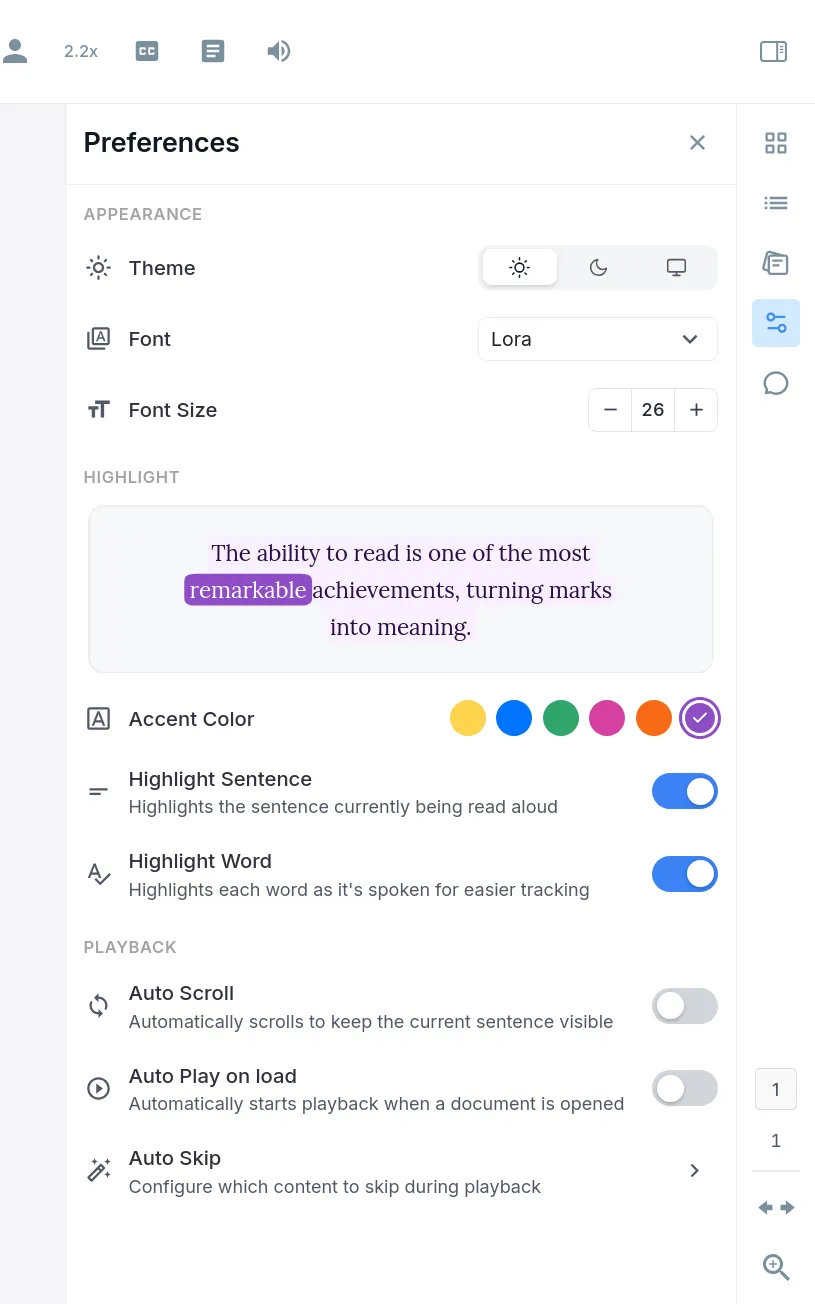
On the Web Reader, you can toggle auto-scrolling at any time inside the preferences side menu:
- Click the Preferences icon (represented by the sliders adjustments control icon) on the sidebar.
- Under the Playback settings section, locate the Auto Scroll toggle.
- Switch it on or off based on your reading preference.
If you manually scroll away while listening, a floating Sync button (represented by a target reticle icon and labeled Sync) will appear on the right side of the screen. Simply click it to snap the document back to the active reading line and resume hands-free tracking.
Browser Extension
If you use Audeus to read articles or newspapers on the web, the browser extension (available for Chrome, Firefox, Safari, and Edge) can synchronize text scrolling with speech player controls right on the host webpage:
- Click the Audeus icon in your browser toolbar to open the player dashboard.
- Select the settings gear icon to configure site-specific options.
- Turn on the Auto-Scrolling option to automatically scroll web pages as they are read aloud.
Mobile App
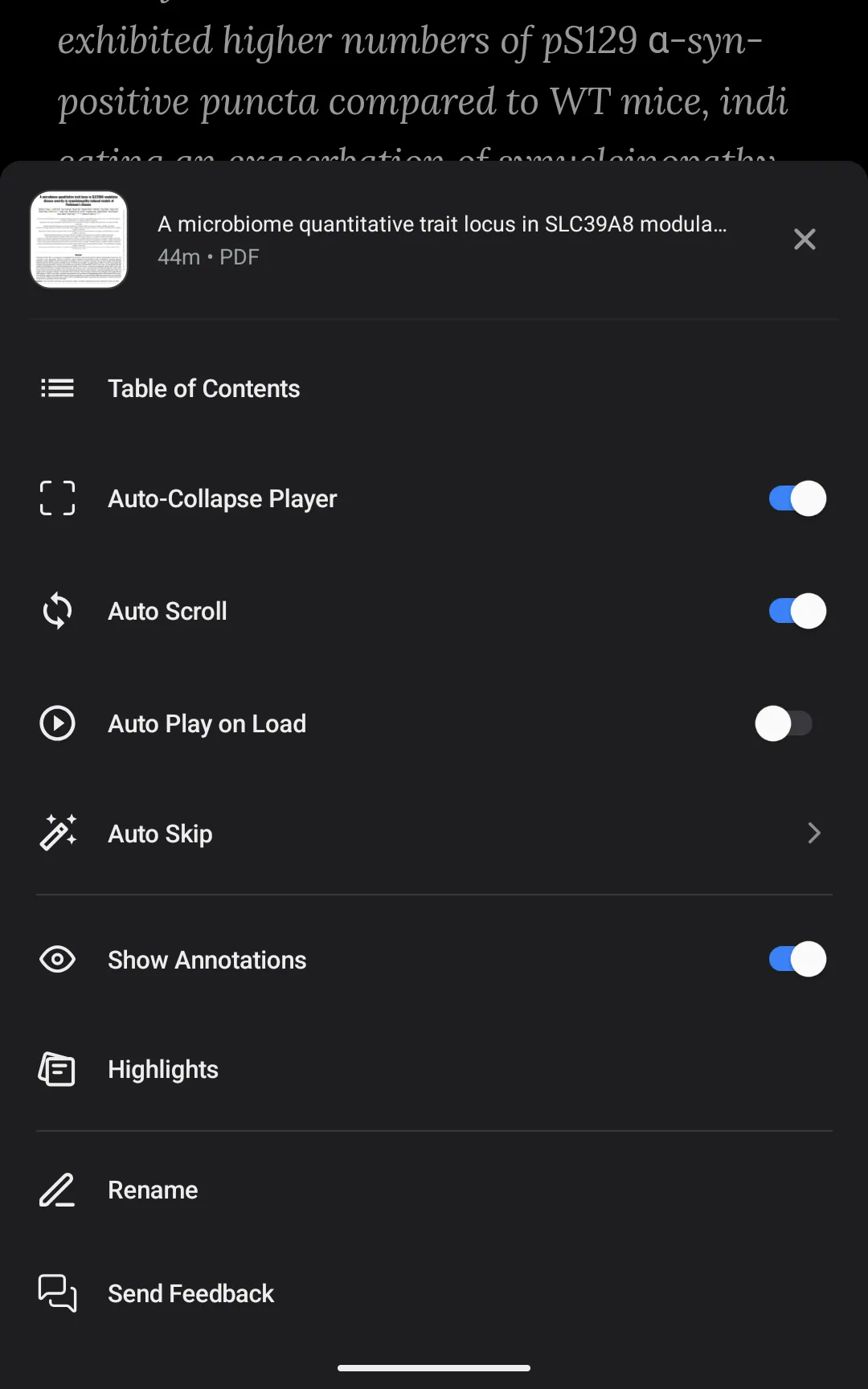
The mobile application supports full auto-scroll pdf reader text to speech sync:
- Intelligent Pause: If you interact with the document in any way (like scrolling or swiping yourself), Audeus will immediately pause the auto-scroll so you can read at your own pace.
- Resume Sync: Tap the floating target reticle icon in the bottom corner of the screen to snap back to the active reading line and resume auto scroll mobile app synchronization.
Frequently Asked Questions
Why did my page stop scrolling automatically?
To prevent the screen from jumping around while you are trying to read or write, Audeus pauses auto-scrolling as soon as it senses a manual swipe, scroll wheel movement, or click. To re-enable automatic scrolling, simply tap the floating target reticle button, and the page will snap back to the narrator.
Can I use Auto-Scroll with visual highlights disabled?
You can customize your reading highlights independently. Even if you turn off word-by-word highlights, the viewport will still scroll automatically to keep the spoken text section visible on your screen.
Is it possible to disable Auto-Scroll by default?
You can configure your layout preferences so that Auto-Scroll is turned off. Disabling the toggle in the preferences menu ensures the page only moves when you manually scroll it, even while audio playback is active.
Does Auto-Scroll support scanned PDFs and EPUB files?
Auto-Scroll is fully compatible with all uploaded documents, including PDFs, EPUB books, and raw text. For scanned PDFs, once the OCR engine finishes scanning the text, auto-scroll will track and synchronize page movements with the narrator voice.
Will the page scroll faster if I increase the playback speed?
The scrolling speed dynamically aligns with the active narrator's speed. If you speed up the narration (for example, to 2.0x), the page auto-scrolls at that exact accelerated pace to keep the reading highlight in the center of the viewport.
How does Auto-Scroll behave when my phone screen locks during playback?
Audio playback continues seamlessly when the app is in the background or your screen is turned off. The moment you unlock your phone and return to the reader interface, the screen instantly snaps to the active sentence to resume visual tracking.
Are my Auto-Scroll options synchronized between my computer and phone?
Your reading preferences are saved directly to your account. Adjusting the Auto-Scroll toggle inside the Web Reader sidebar automatically carries over to the browser extension and mobile app settings.