Click-to-Jump: Navigate Documents Instantly
When reading long PDFs, textbooks, or online articles, you do not always read from beginning to end. Sometimes you want to skip an introductory paragraph, review a previous section, or scan ahead for a specific quote. Audeus supports non-linear listening by allowing you to skip text and navigate documents instantly by interacting directly with the words on your screen, which is especially useful when focus drifts and you need to re-enter the page quickly (a common ADHD reading pattern).
With Click-to-Jump, you do not need to repeatedly fast-forward or wait for the narrator. You can command the voice reader to play from any specific paragraph or sentence just by selecting it. This interactive feature is fully integrated across the Web Reader, the Browser Extension, and the Mobile App (available for iOS and Android).
Direct Text Selection Playback
Directly interacting with your text is the fastest way to navigate. The gesture depends on the device you are using:
Click to Jump (Web Reader & Browser Extension)
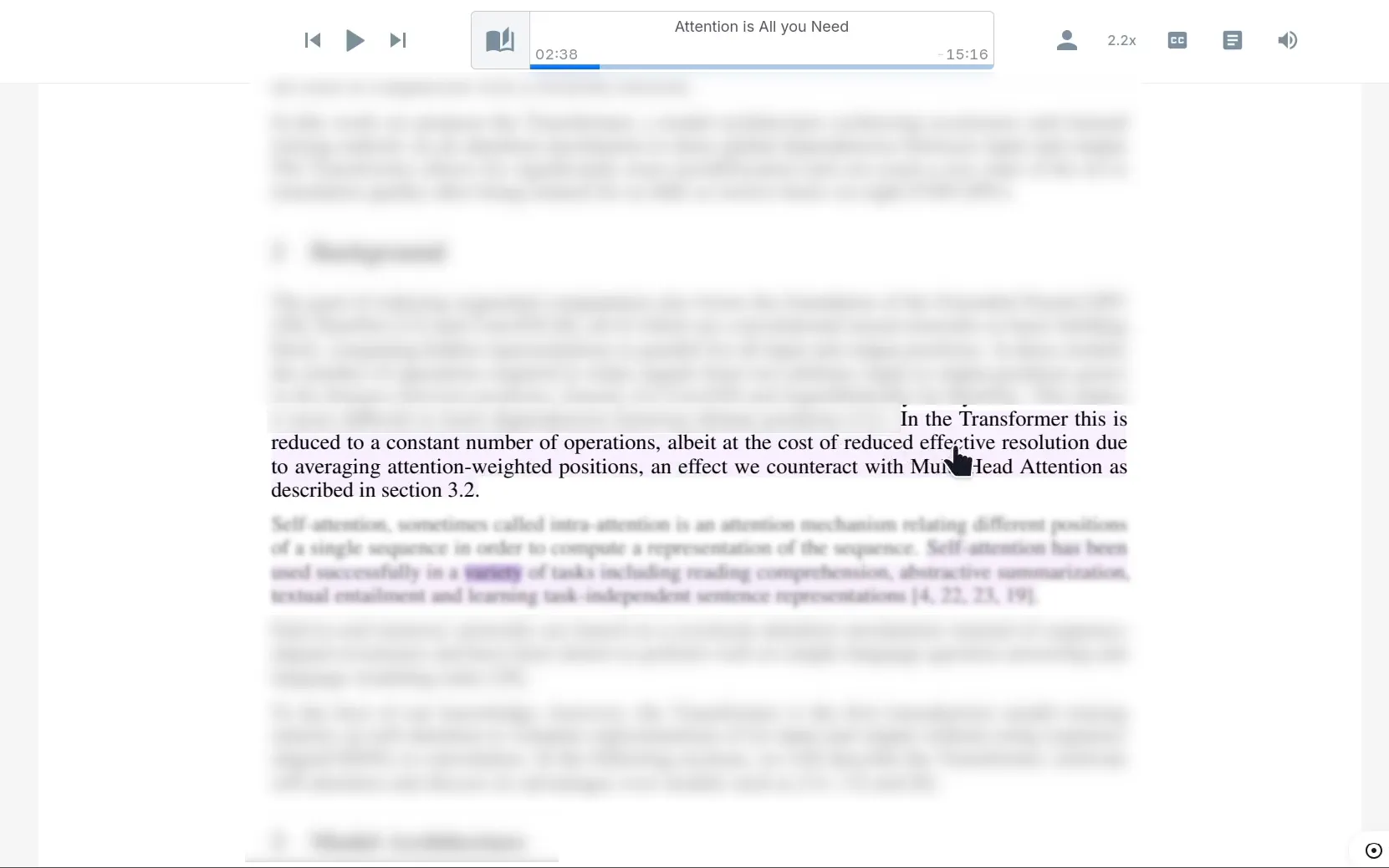
When listening on your computer using the Web Reader or Browser Extension, simply single-click on any word or sentence. The reading highlight will instantly snap to your cursor location, and the voice narrator will start playing from that exact word.
Tap to Jump (Mobile App)
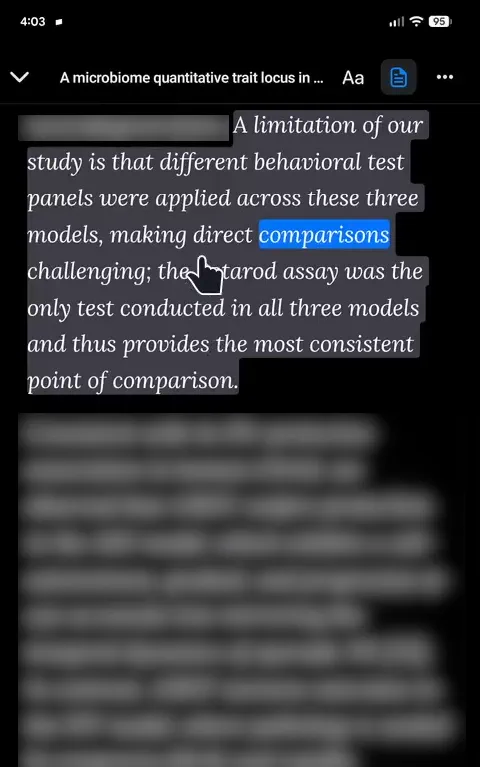
When using the Mobile App on a phone or tablet, simply single-tap on any sentence. The text-to-speech engine immediately shifts visual focus and playback to the tapped line, allowing quick hands-on scanning.
Configuring Click-to-Jump Options
Depending on the platform you are using, Click-to-Jump operates as follows:
- Web Reader & Mobile App: Click-to-Jump is a built-in interactive reading feature. No setup is required - simply click or tap the text at any time to instantly jump the audio playback cursor to that spot.
- Browser Extension: If you prefer to select text on web pages without shifting your audio position, you can manage this behavior in the settings. Click the Gear (Settings) icon inside the Browser Extension floating player, select the Click to Jump settings tab, and toggle the switch on or off globally or for the current website domain.
Traditional Player Bar Controls
If you prefer traditional media controls, the Audeus player bar provides classic navigation keys:
- Sentence Skips (Forward / Rewind): Use the forward and backward buttons on the player bar (or the left and right arrow keys on your keyboard) to jump back and forth sentence-by-sentence.
- Timeline Scrubbing: Click and drag the progress bar slider at the bottom of the screen to quickly scroll through the document timeline, exactly like scrubbing through a podcast or audio track.
Frequently Asked Questions
Does Click-to-Jump work on scanned PDF documents?
Click-to-jump navigation works on scanned PDFs once they have been processed by our built-in OCR (Optical Character Recognition) tool. The OCR engine extracts the underlying text coordinates, rendering the scanned document layout fully interactive for taps and clicks.
Will clicking a word pause my current listening session?
Clicking or tapping a new word will instantly redirect the voice narrator to that word and continue playing without pausing. If you wish to pause playback entirely, you can tap the spacebar on your keyboard or click the play/pause button on the player controls.
Are my click settings synchronized across my web browser and mobile app?
Your interactive reading preferences are saved directly to your user profile. When you adjust the Click-to-Jump toggle on the Web Reader, your preference is automatically loaded the next time you use the Browser Extension.