Adjust Voice & Reading Speed (Mobile)
Whether you are commuting, working out, or relaxing, the Audeus mobile app for iOS and Android gives you complete control over your text-to-speech reading experience. You can change your narrator voice, adjust the playback rate (including slowing down for language learners), and configure settings directly within the app.
How to Adjust Voice and Speed Settings on Mobile
You can customize your listening preferences in two ways: within the document reader toolbar or through your profile settings.
Option 1: Using the Reader Toolbar
When you are actively reading a document (such as a PDF, EPUB, or web link):
- Open the document to enter the reader view.
- Locate the player controls in the bottom toolbar.
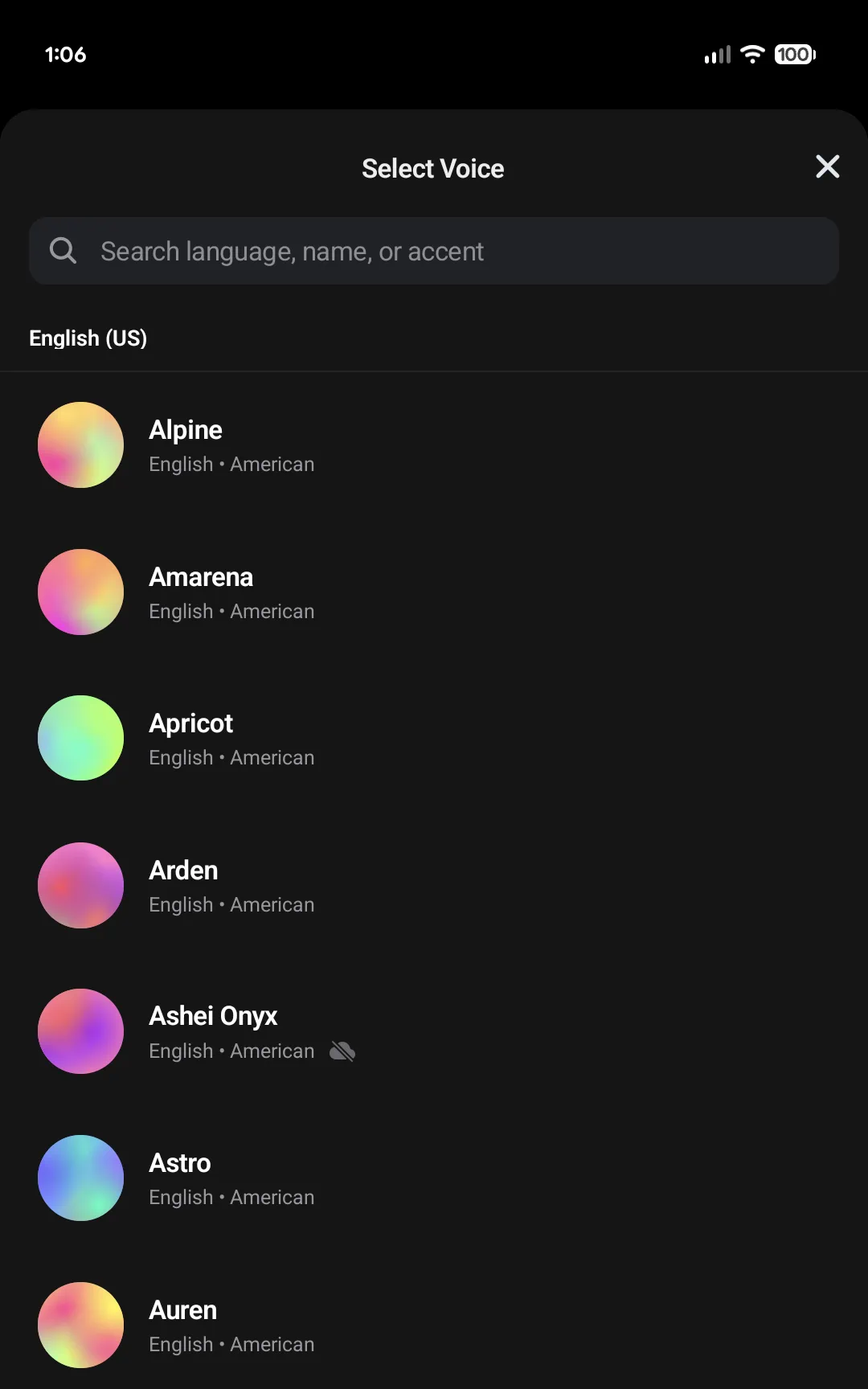
- To change the voice: Tap the Voice icon (represented by a person speaking) on the left side of the toolbar. This opens a bottom sheet showing the voice library categorized by language and regional accent. Tap a voice to hear a sample, then select it.
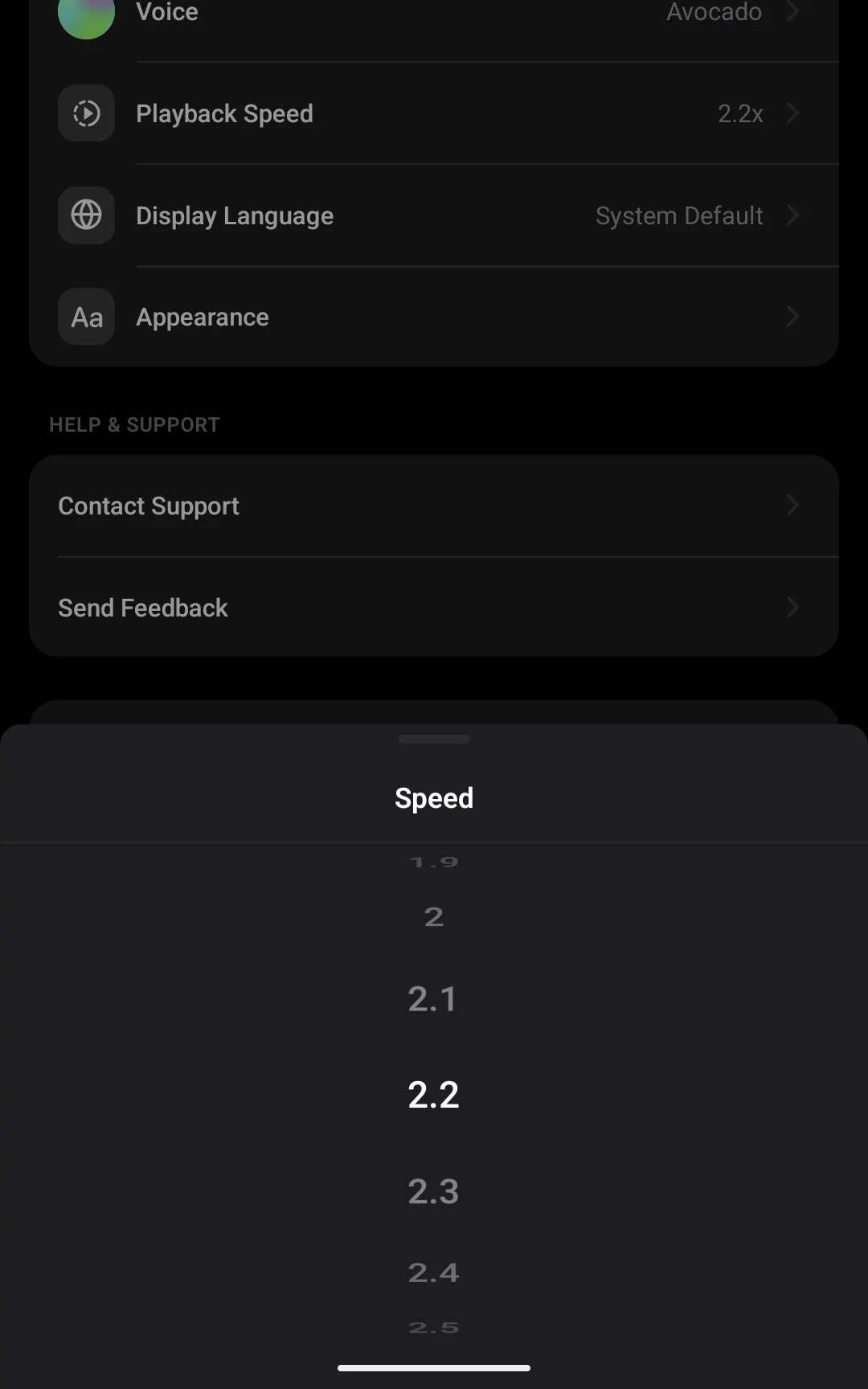
- To adjust the speed: Tap the Speed multiplier button (displaying your current speed, such as 1x or 1.5x) on the right side of the toolbar. This opens a bottom sheet featuring a vertical Wheel Picker. Swipe up or down on the wheel to adjust the speed from 0.5x to 3.5x.
Option 2: Using the Profile Tab
If you want to configure your settings without opening a document:
- Go to the main library or home screen and tap the Profile tab.
- Locate the Preferences section.
- Tap Voice or Playback Speed to adjust your settings, which will apply to all future files you listen to.
Expanding the Mini-Player
If you navigate away from the document reader while audio is playing:
- A compact Mini-Player Bar will appear at the bottom of your library or home screen, showing the play/pause state and the document title.
- To re-expose the full player controls and reading text, tap the title or content area of the Mini-Player Bar to expand the reader screen back to full view. Tapping the play/pause icon on the bar controls audio directly.
Background and Bluetooth Controls
Audeus integrates with your phone's native operating system controls so you can listen hands-free:
- Lock Screen Media Card: Pause, play, or skip sentences using the lock screen player card on iOS and Android without unlocking your device.
- Notification controls: Manage playback from the swipe-down notification panel.
- Bluetooth Headsets and Steering Wheels: Use your AirPods tap shortcuts, headphone buttons, or car steering wheel controls to skip forward/backward or play/pause the reader.
Listening Offline and Internet Requirements
Cloud-based AI voices stream high-quality audio and require an active internet connection to read. However, Audeus provides built-in support for offline listening:
- Caching Cloud Voices: If you want to listen to your preferred cloud voice while offline (like on an airplane or subway ride), open your document while connected to Wi-Fi and play the audio briefly. The app will cache the voice data locally, allowing background reading to continue offline.
- On-Device Offline Voices: Audeus includes a selection of high-quality offline voices that run directly on your device. These voices work completely without an internet connection, ensuring you can start listening immediately even when offline.
Frequently Asked Questions
Are there voices that work without an internet connection?
Yes. Audeus includes pre-installed offline voices that function completely without internet. If you lose connection and have not cached your preferred cloud voice, the player will automatically switch to an on-device offline voice so your listening experience is never interrupted.
Can I use Audeus for free?
Yes. You can use Audeus completely for free. While advanced cloud-based AI voices may have daily limits for free accounts, our high-quality on-device mobile voices offer 100% unlimited playback usage at no cost.
How are reading speeds saved across my documents?
Speed is a global, synchronized preference. Audeus automatically saves whatever speed multiplier you last set (such as 1.2x or 1.5x) to your user profile. This rate is loaded automatically whenever you open any document in your library, and syncs across to the Web Reader or Browser Extension.
How do I adjust the auto-scroll behavior on mobile?
When audio is playing, the screen scrolls to follow the text highlight. If you scroll manually to read ahead, auto-scroll will pause. Tap the floating target reticle icon in the bottom corner of the reader to snap back and resume auto-scrolling. View the Auto-Scroll Playback guide for details.