Customize Font & Reader Settings
Audeus provides complete control over your visual reading layout. Our custom Reader Mode allows you to personalize typography, page widths, and themes across desktop and mobile devices. Tailoring these settings helps reduce eye strain and increase focus, including for low vision reading and long-form study.
Web Reader Layout Controls
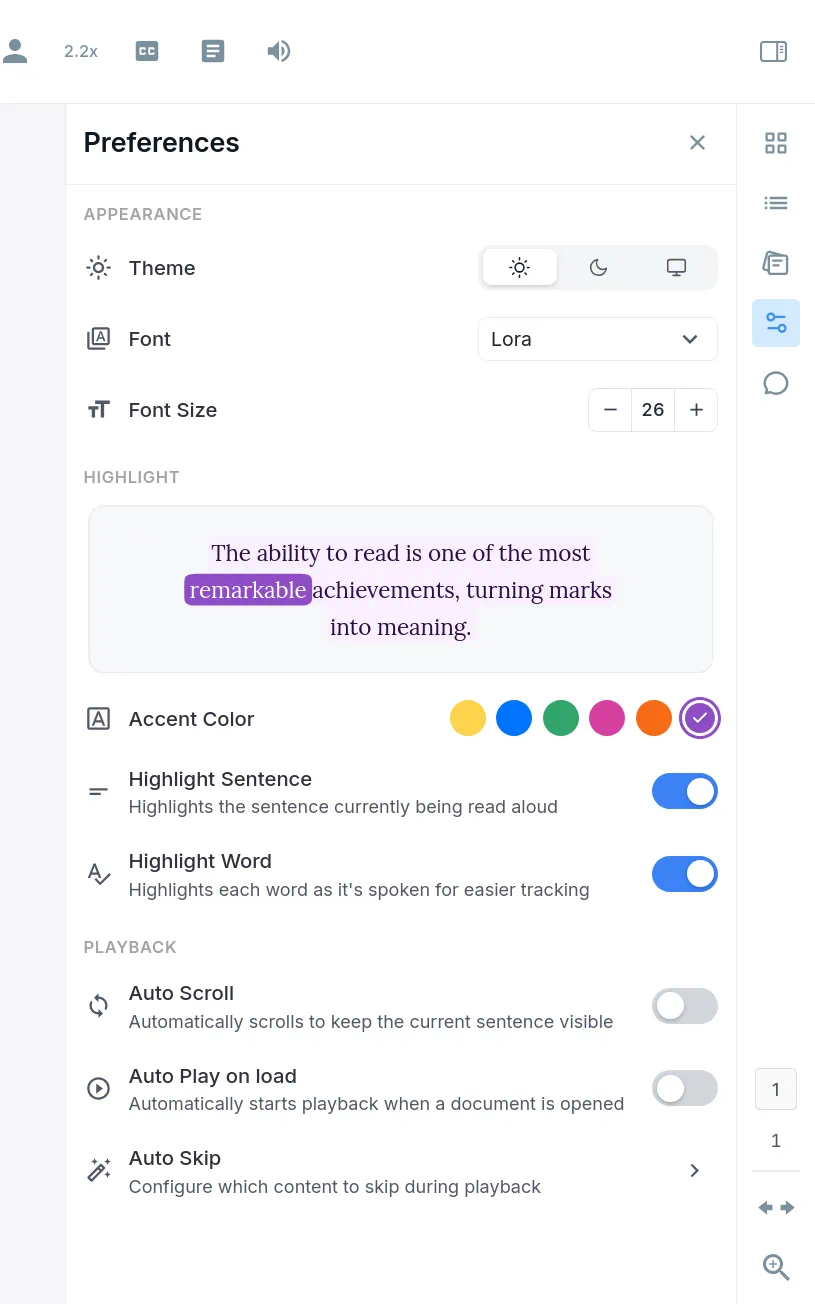
On the Web Reader, visual styling controls are located within the Preferences panel on the side menu. To access them, open any document in your library and click the Preferences icon (represented by the sliders control adjustments icon) in the sidebar layout:
Appearance Configuration
- Color Theme: Toggle between Light, Dark, and System themes. Selecting the System option automatically syncs the reader's appearance with your computer's operating system settings.
- Font Typeface: Select from a curated selection of clean modern sans-serif fonts, classic serifs, and high-readability typefaces designed for optimal visual processing.
- Font Size: Dynamically scale the text size up or down using the size adjustment buttons to find your perfect reading zoom.
- Reader Width: For reflowable layouts, you can toggle between a Full Width view that utilizes your entire screen or a Normal Width layout that centers the text with generous side margins for easier eye tracking.
Highlighting and Playback Controls
The Preferences panel also contains settings for your reading highlights (such as choosing your custom highlight accent color or toggling sentence and word-by-word highlights) and playback sync.
For full details on these features, explore our guides on Highlight Customization, Auto Scroll, and Smart Skips.
Mobile Reader Layout Controls
On the Mobile App, reading settings are organized into two dedicated bottom sheets designed to keep the player view simple and distraction-free. Tap anywhere on your active reading screen to reveal the toolbar controls:
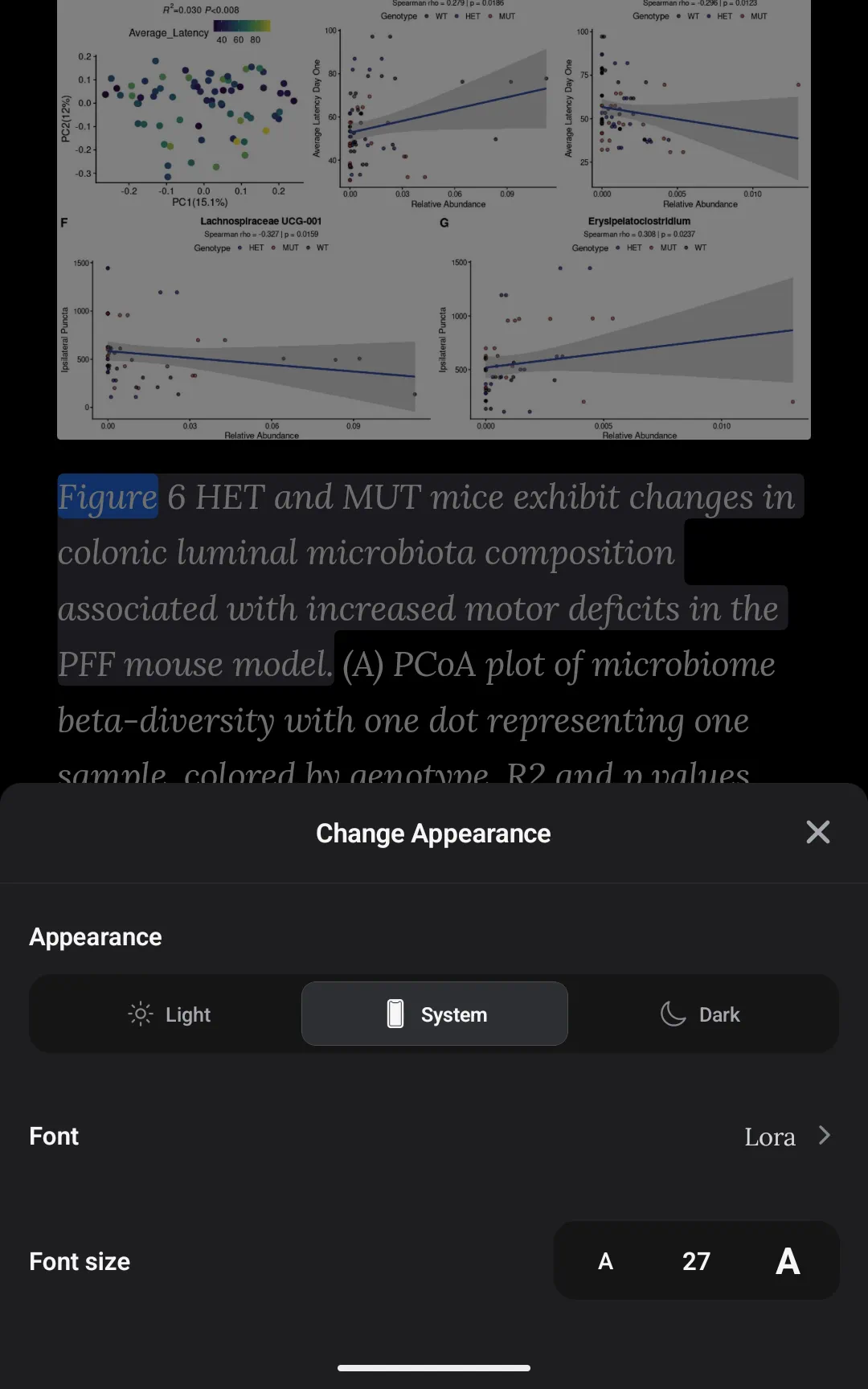
1. Appearance settings (Aa Icon)
Tap the Aa (Appearance) button on the player overlay to open the visual layout sheet:
- Color Theme: Select Light, Dark, or System theme options to match your device's display preferences.
- Font Typeface: Choose from a selection of optimized typefaces. This menu includes a specialized dyslexia-friendly font that features heavier line weights at the bottom of characters. This added weight helps stabilize text, anchor the reader's focus, and prevent characters from appearing to jump or rotate on the screen.
- Font Size: Adjust the text scale dynamically using the increment and decrement buttons inside the sizing capsule, supporting text sizing options from a minimum of 12 up to a maximum of 36.
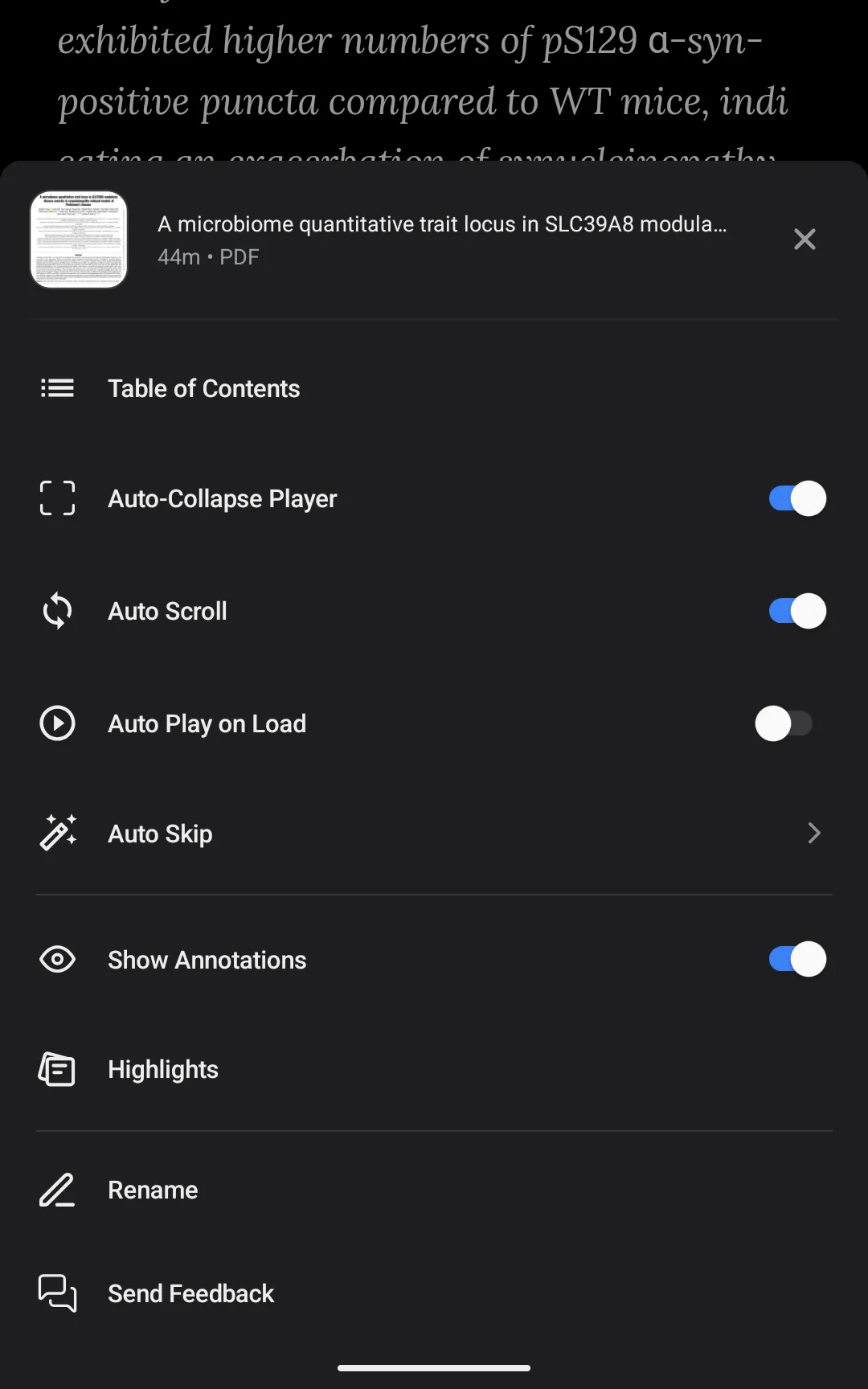
2. Advanced settings (Three-Dots Icon)
Tap the Three-Dots (More Settings) button on the player toolbar to configure advanced document toggles:
- Auto-Collapse Player (Focus Mode): Enable this toggle to automatically minimize the bottom playback controls as soon as you tap play. This removes interface clutter and gives you a clean page for visual tracking.
- Auto Scroll: Enable this option to automatically scroll the document page as you listen, ensuring that the active highlighted reading line remains centered in the viewport.
- Auto Play on Load: Turn this toggle on to automatically start audio narration the moment you open any document in your library.
- Show Annotations: Toggle this switch to instantly display or hide your custom drawings and highlight overlays on the document page.
Frequently Asked Questions
How does changing settings affect my PDF or Word Document formatting?
When you view an uploaded PDF, Word document, or EPUB in Reader Mode, Audeus extracts the document content into a beautifully formatted Reader Mode layout. This reflowable format lets you adjust font family, margins, and sizes freely without affecting the document's original files. If you prefer to view the static pages exactly as they were originally formatted, you can toggle from Reader Mode to Original Layout in the top menu bar.
Do my font and layout preferences sync across devices?
Yes. Your reader preferences, including font size and color themes, are saved to your user profile and sync automatically. When you adjust settings in the Web Reader, they are applied the next time you open the Mobile App.
Are dyslexia-friendly options available on the web?
Yes. While the web reader does not feature the OpenDyslexic typeface, it includes highly readable sans-serif fonts specifically chosen for high readability and visual processing. See also Audeus for Dyslexia.
Does changing settings in one document apply to all my files?
Yes. Visual appearance preferences (such as theme and font sizes) are applied globally across your entire personal library so you do not have to customize them each time you open a new document.