Download Audeus for iOS
The Audeus iOS app turns your iPhone or iPad into a powerful, portable reading companion. Optimized for on-the-go listening, the iOS app integrates seamlessly with the Apple ecosystem, allowing you to instantly import web articles, PDFs, and EPUBs using the Files app or built-in document scanner.
With full support for background playback, Apple Lock Screen widgets, and offline listening, you can keep learning during your commute, workout, or screen-free downtime.
How to Install Audeus on iOS
Audeus is officially available on the Apple App Store for all iPhones and iPads running iOS 15.0 or higher.
Step 1: Download from the App Store
- Open the App Store app on your iPhone or iPad, or visit the Audeus App Store Page.
- Tap the Search tab in the bottom right corner and search for Audeus.
- Tap the Get (or Cloud download) button next to the Audeus app listing.
- Authorize the download using Face ID, Touch ID, or your Apple ID passcode.
Step 2: Grant Permissions (Recommended)
When you launch Audeus for the first time, you will be prompted to grant permissions for a seamless experience:
- Camera: Required if you want to use the built-in OCR document scanner to read physical book pages aloud.
- Background App Refresh: Allow Audeus to refresh synced items in your library in the background.
Getting Started: Import and Listen on iOS
Once installed, log into your Audeus account to instantly sync your library, settings, and playback progress.
How to Import Documents
- Open the Audeus app and navigate to the Library tab.
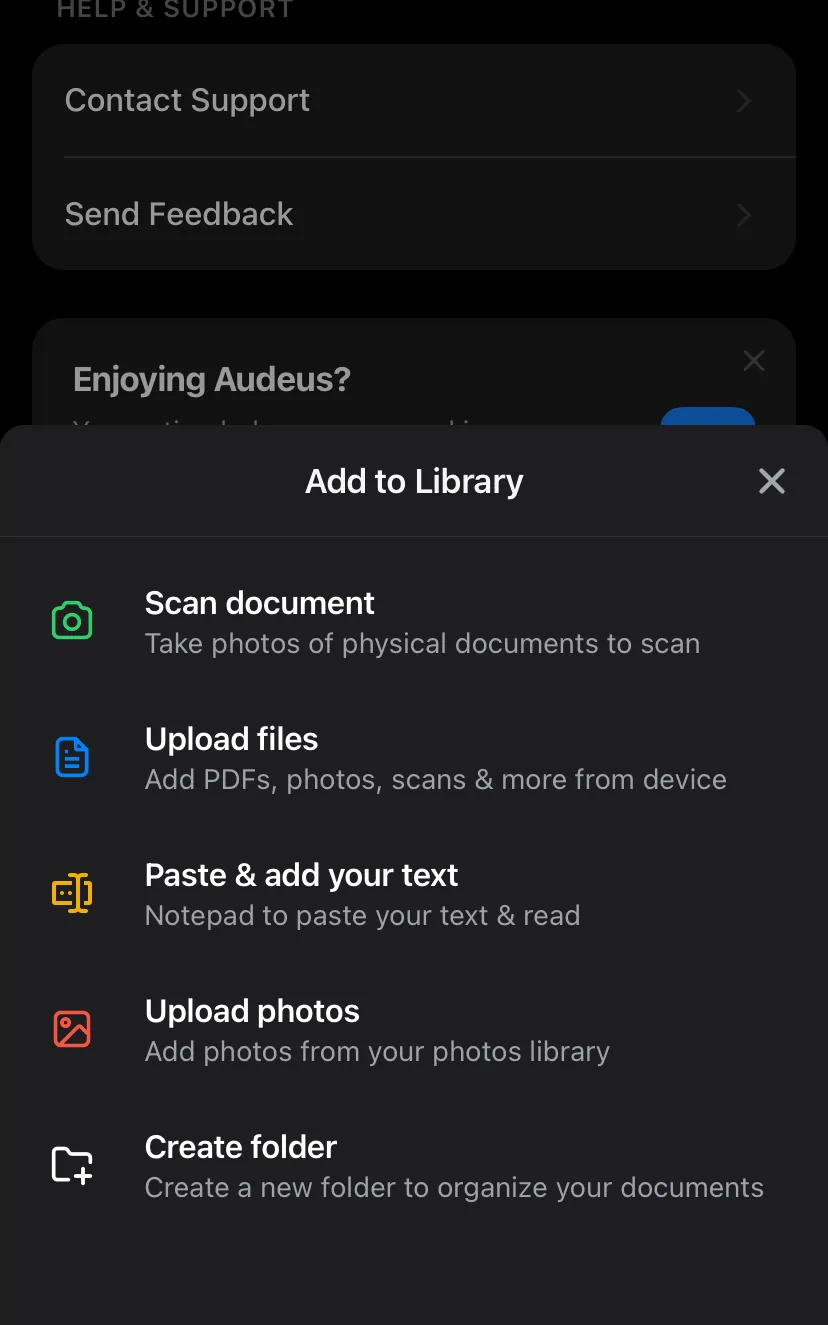
- Tap the floating "+" (Add) button in the bottom right corner.
- Select your import method:
- Import File: Browse local documents from iCloud Drive, Google Drive, OneDrive, or local device storage via the iOS Files browser.
- Scan Document (Camera OCR): Take a photo of a physical book or document page, and Audeus will convert the text to audio instantly.
- Paste Text: Paste copied text or web article URLs to listen immediately.
Lock Screen and Background Controls
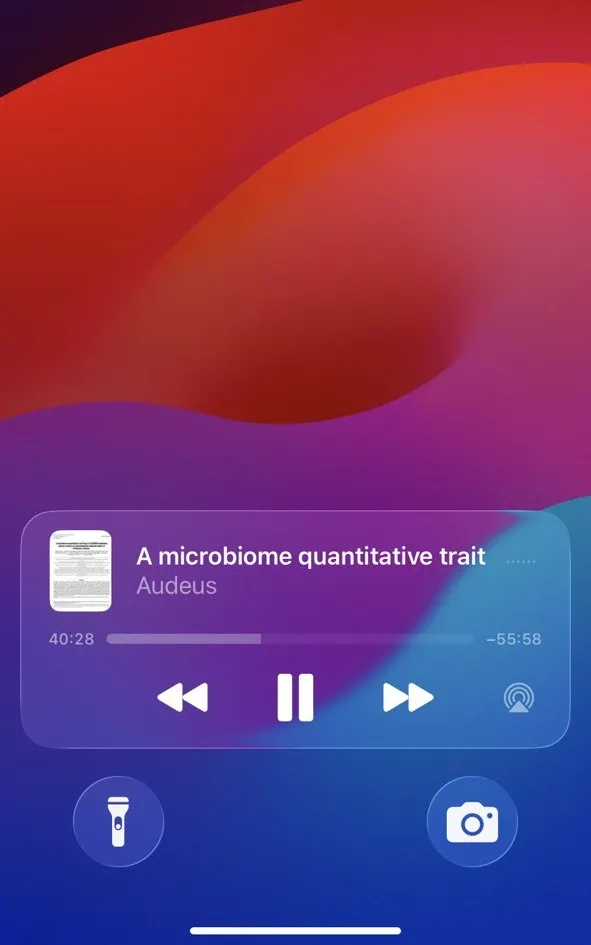
Audeus supports background playback, letting you listen even when your screen is locked or you are using other apps.
- iOS Lock Screen Widget: When Audeus is playing, a native media widget will appear on your lock screen. You can play, pause, or skip forward/backward sentence-by-sentence.
- Control Center: Swipe down from the top right of your screen to access system-wide volume, playback speed adjustments, and device output controls (AirPlay/Bluetooth).
Frequently Asked Questions
Can I listen offline or on airplane mode?
Yes! As long as you open the document in the Audeus iOS app once while connected to Wi-Fi or cellular data, the text is cached on your device. You can then listen to it completely offline without internet access.
How do I import PDFs from iCloud Drive?
Tap the floating "+" button inside the Audeus app library, select Import File, and choose iCloud Drive from the Files browser to select and sync the document.
Does my progress sync between desktop and iPhone?
Absolutely. If you read on the Audeus web app or browser extension, your exact word-by-word reading position, highlights, speed preferences, and voice selections sync instantly to your iPhone or iPad in real-time.
Why does background audio occasionally pause?
If iOS runs low on memory, it may suspend background apps. To prevent this, ensure Background App Refresh is enabled for Audeus in your iPhone Settings (Settings > Audeus > Background App Refresh).