Install Edge Extension
Transform your reading workflow in Microsoft Edge with natural, high-fidelity AI text-to-speech. While Edge has a basic built-in voice reader, installing the Audeus Edge Add-on unlocks a professional reading workspace. It offers ultra-lifelike voices, adjustable listening speeds up to 3.5x, custom highlighters, and instant library sync that keeps your position saved across devices.
Audeus connects directly with our mobile applications, allowing you to sync articles from Edge and listen on the go with the Android App or iOS App without losing your place.
Step-by-Step Installation for Microsoft Edge
Adding the add-on is simple, but ensuring it is visible on your browser bar is key to a smooth workflow.
Step 1: Download from the Edge Add-ons Store
- Open your Microsoft Edge browser and head to the Audeus Edge Add-on Store Page.
- Click the blue Get button near the top of the details panel.
- Confirm the installation by clicking Add extension when the browser prompt appears.
Step 2: Show in Toolbar
Edge automatically hides new extensions under the extension puzzle icon. To keep the Audeus icon pinned:
- Tap the Extensions icon (puzzle piece symbol) in the upper-right corner of your browser.
- Find Audeus in the dropdown listing.
- Click the Show in toolbar icon (shaped like an eye) next to the name. The blue Audeus logo will now remain visible on your toolbar.
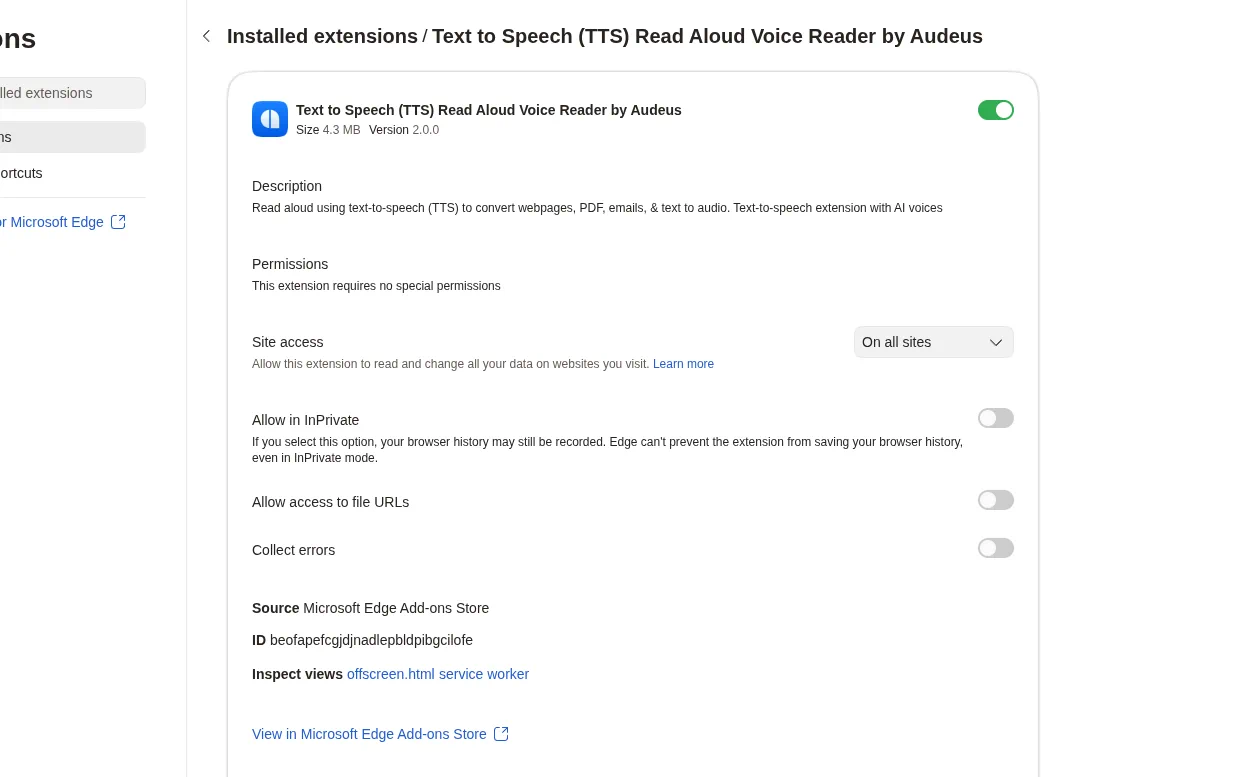
Step 3: Manage Extension Site Access
For the floating player handle to load automatically on the web pages you visit, you must grant the extension proper access permissions:
- Click the Extensions icon in the upper-right corner.
- Select the three horizontal dots (kebab menu) next to Audeus and click Manage extension. (Or, type edge://extensions in the address bar and click Details on the Audeus card).
- Scroll down to the Site access settings.
- Locate the Allow this extension to read and change all your data on websites you visit setting and select On all sites from the menu.
Configuring this setting allows Audeus to render its floating control handle automatically, letting you listen to any webpage instantly.
Navigating the Edge Text-to-Speech Sidebar Player
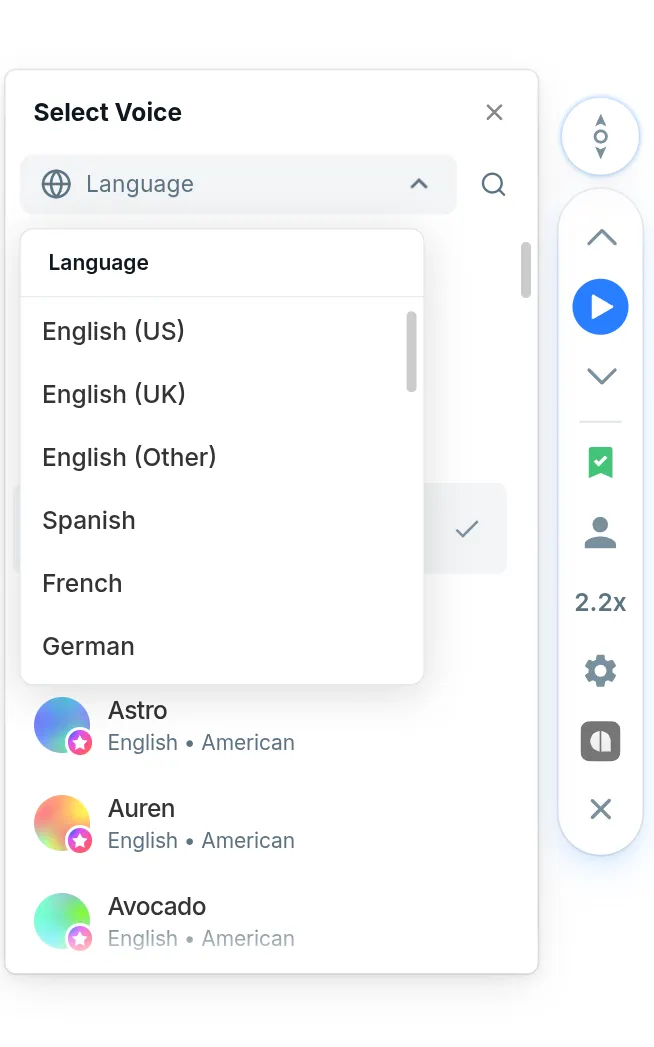
When you open a supported article or document, click the floating Audeus pill handle on the side of the browser page to reveal the vertical sidebar player:
- Playback Controls: Pause, play, or skip forward and back sentence-by-sentence.
- Word-Level Highlighting: Watch the text get highlighted in real-time as the narrator reads.
- Speed Adjustments: Speed up your listening up to 3.5x to get through research papers or newsletters faster.
- Cloud Sync: Save web articles directly to your account to access them on mobile devices.
Tailoring Your Reading Experience in Edge
Customize the extension settings to match your personal reading habits:
Smart Navigation Controls
- Click to Jump: Enable this in settings to skip directly to any paragraph on the page just by clicking the sentence you want to hear.
- Auto-Scrolling: Keep your place visual by allowing the browser to automatically scroll down and center the highlighted text as you listen.
Highlighting and Themes
Choose a visual style that is comfortable for your eyes:
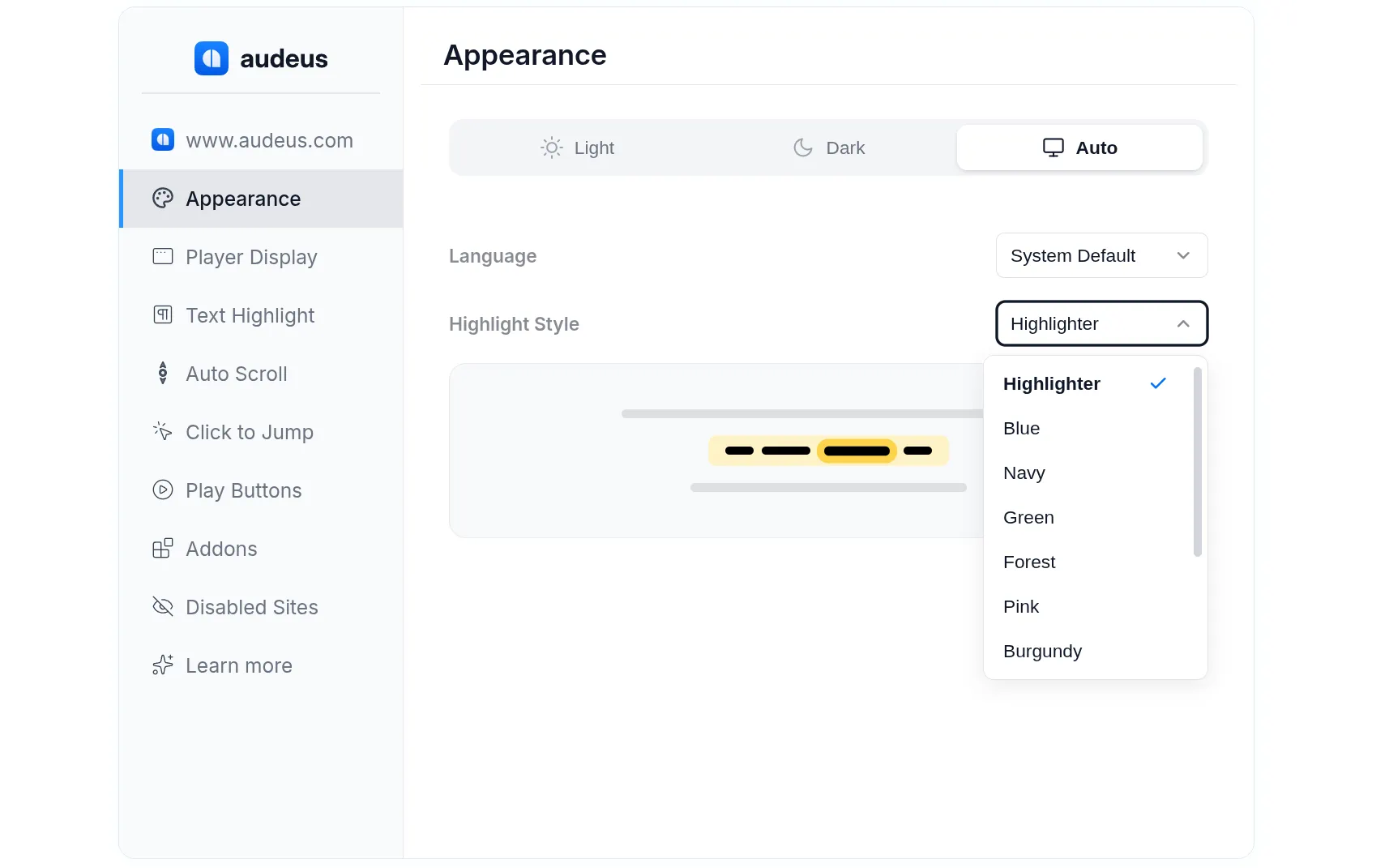
- Highlight Color Themes: Choose from custom color sets like Navy, Plum, Forest, Burgundy, or Orange in the Appearance tab.
- Display Themes: Switch between Light, Dark, or System modes to coordinate with your Windows or macOS styling.
Seamless Compatibility with Microsoft 365 and Web Apps
Unlike standard screen readers that read headers, footers, and ads, Audeus filters page noise and offers custom integrations for your daily productivity tools:
- Word Online & Outlook Web: Renders direct audio buttons in your inbox and document editors, reading your text with standard inline highlight tracking.
- Google Docs: Integrates natively within your workspace tabs for editing and listening.
- AI Assistance (ChatGPT & Gemini): Listens to chatbot responses with dedicated play buttons added next to the AI output.
- Reddit Threads: Groups comments and posts sequentially for easy thread parsing.
Frequently Asked Questions
Why choose Audeus over Microsoft Edge's built-in "Read Aloud" reader?
While Microsoft Edge has a built-in voice reader, Audeus is designed specifically for productivity. It features highly realistic AI voices, advanced text highlight settings (including custom colors), and a cloud library that syncs your position with your mobile devices.
Does the Edge extension read web text automatically without manual highlights?
Yes! You do not need to highlight or select text. When you press play, Audeus automatically filters page clutter - like sidebars, menu bars, and footer advertisements - to isolate and read the main article text from beginning to end.
Can I read PDF files using this Edge extension?
To listen to PDFs, books, or ePub files, upload them directly to your personal library using the Audeus Web Reader or our mobile apps (iOS App / Android App). Your listening progress and highlights will sync automatically across all your devices.
How do I temporarily disable the Audeus player on a website?
If you want to hide the floating pill on specific domains (like banking portals or internal dashboards):
- Click the Audeus icon on your Edge toolbar to open the settings popup.
- Select the Disabled Sites tab.
- Toggle the switch to disable the player for the active domain, or enter URLs manually.
Do I need to pay to use Audeus on Microsoft Edge?
Audeus provides free access to all our standard text-to-speech voices. Access to ultra-lifelike AI voices is capped under a daily limit for free accounts. You can upgrade to Audeus Pro inside the extension settings menu to get full access to premium voices without daily caps.
Install Audeus on Other Browsers
If you use multiple web browsers, you can install the Audeus extension across other platforms to keep your library and reading preferences synced: