Table of Contents and Section Time Estimates
Long PDFs and EPUBs are easier to navigate when you can jump by chapter and see how long each section will take to hear. Audeus shows a Table of Contents with per-section listening time estimates when the file includes outline data. If a PDF has no table of contents, you can still move through the document with page thumbnails.
Documents with a Table of Contents (PDF and EPUB)
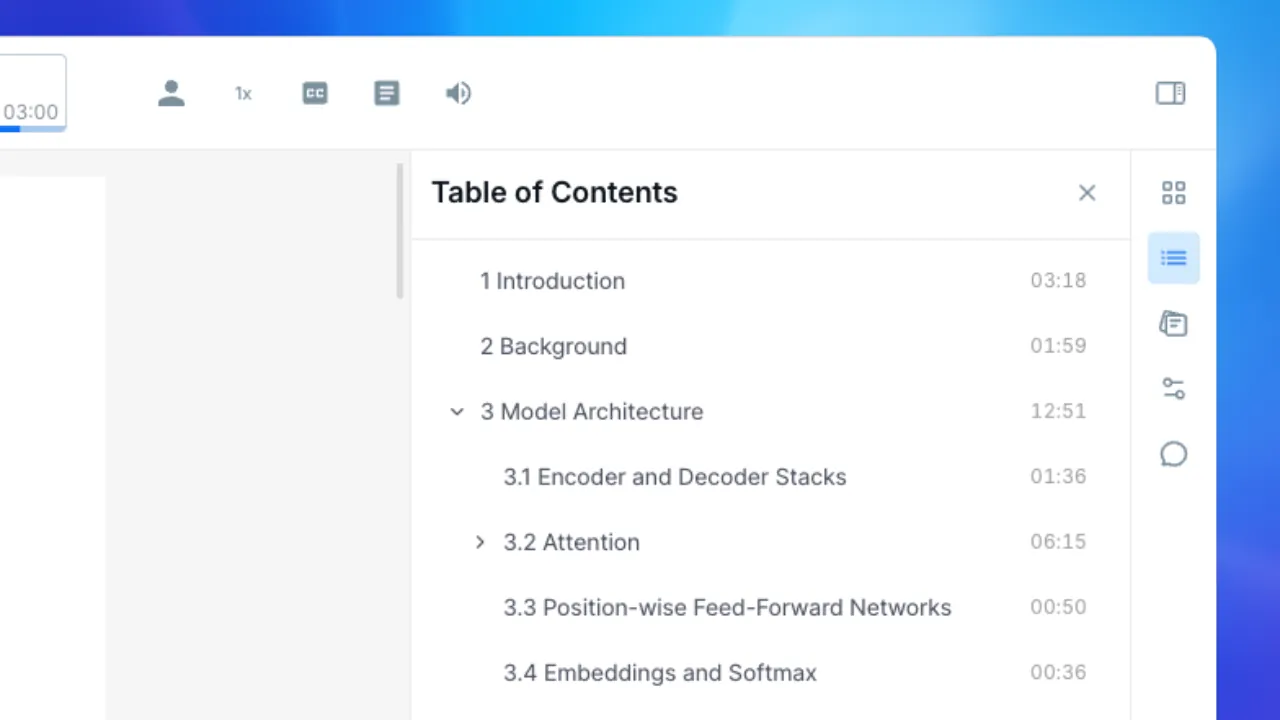
When a PDF or EPUB includes a table of contents (chapter outline), Audeus lists those sections in the reader siderail.
- Open the document in the Web Reader or mobile app.
- Open the Table of Contents panel from the reader navigation.
- Browse chapter and section titles.
- Tap or click a section to jump playback to that point.
- Check the time shown next to each section: that is the estimated listening duration for that section at your current playback speed.
EPUB chapter navigation is also covered in Listen to EPUB Audiobooks.
Section Estimates and Playback Speed
Section times use the same relationship as the player scrubber: baseline duration is divided by your playback speed multiplier.
- Raise speed (for example to 1.5x or 2x) and section estimates get shorter.
- Lower speed and section estimates get longer.
Change speed with the player controls, then glance back at the TOC to replan which chapters fit your available time. For scrubber-level elapsed and remaining time, see Scrubber Bar Time Estimates and Playback Speed. Speed how-tos: Web and Mobile.
PDFs Without a Table of Contents
Some PDFs have no embedded outline. When the Table of Contents is empty, Audeus shows that there is no table of contents for that file.
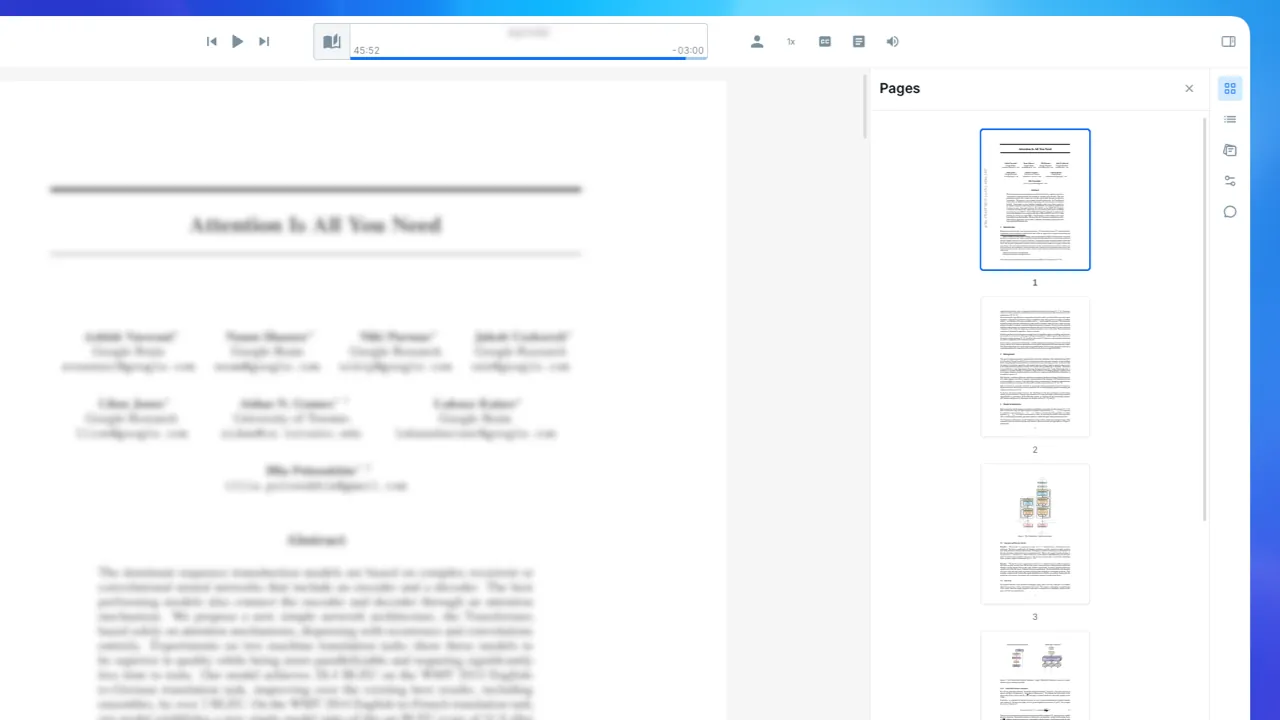
In that case, use the Pages (thumbnails) panel to browse page previews and jump to a specific page. Thumbnails give you visual landmarks when chapter titles are not available.
Web vs Mobile
Web Reader
- Open the Table of Contents from the document siderail while viewing a PDF or EPUB in the Web Reader.
- Jump to a section with a click; section times update when you change playback speed.
- If there is no TOC, open the Pages panel and select a thumbnail.
Mobile App
- Open the same document on iOS or Android.
- Use the Table of Contents control in the mobile app to jump by section and review listening estimates.
- For PDFs without a TOC, browse page thumbnails to move through the file.
Frequently Asked Questions
Which file types show a table of contents?
PDFs and EPUBs that include outline or chapter data. Plain images and many scanned PDFs without an outline will not list chapters; use thumbnails or jump to a specific page.
Why do section times change when I change speed?
Estimates reflect listening time at your current speed, not a fixed clock for the text length alone.
What if the TOC panel says there is no table of contents?
The file has no usable outline. Switch to page thumbnails (Pages panel) to navigate by page preview.
Do section estimates match the scrubber bar?
They use the same speed math. The scrubber shows whole-document elapsed and remaining time; TOC entries show per-section listening time. See Scrubber Bar Time Estimates and Playback Speed.
Can I use the TOC on mobile and the Web Reader?
Yes. Open the Table of Contents from the reader navigation on either surface. Section times update when you change playback speed.