Read Plain Text and Pasted Notes Aloud
Pasting text and reading raw documents aloud is one of the easiest ways to catch mistakes and proofread your writing in-place. Whether you are drafting a blog post, practicing a speech, or studying lecture notes, Audeus provides a simple text-to-speech environment to listen to your words without any formatting distractions.
How to Paste and Read Text Aloud
You can copy, paste, and listen to your text instantly across your computer or phone.
Paste Text into Audeus for Web Notepad
Log into the Audeus Web Reader, click the Add files button, and select Paste & add your text. This opens a clean workspace where you can type directly or paste text from your clipboard. The text is ready instantly - just click the Play button to begin listening. If you draft your work in Google Docs, you do not need to copy and paste your text; you can read your documents natively by following our guide on how to Text-to-Speech for Google Docs.
Paste Text into the Mobile App Notepad
Open the Audeus mobile app (setup guides available for iOS and Android), tap the Add (plus) icon on the library screen, and select Paste & add your text to open the Notepad. Type or paste your copied text into the Notepad to begin listening on the go.
Read Selected Web Text with the Browser Extension
If you want to read text directly from a webpage, use the Audeus browser extension. Highlight any HTML content on a web page, click the extension icon, and Audeus will instantly read the selected text aloud. To get started, read how to install the extension for Chrome, Safari, Firefox, or Edge.
Best Use Cases for Plain Text
While basic, plain text is incredibly useful for specific workflows:
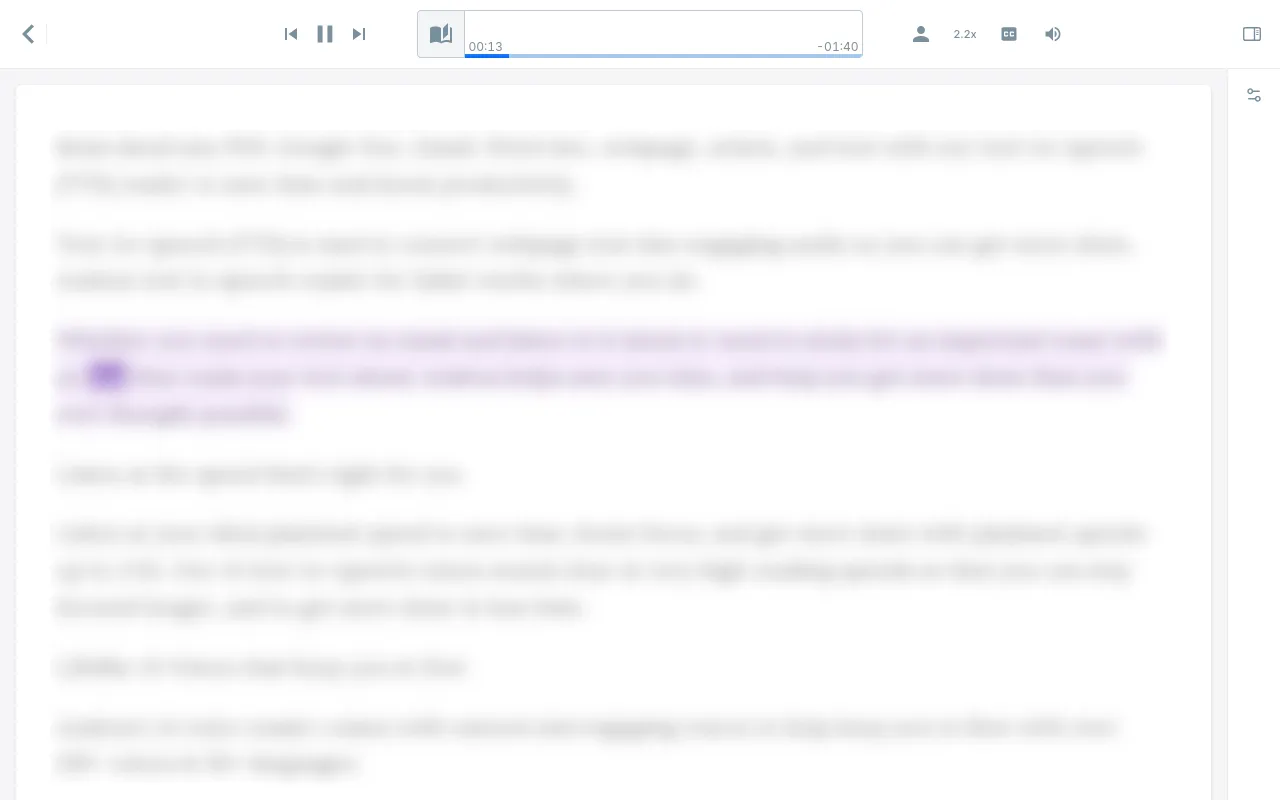
- Proofreading Your Writing In-Place: Paste your drafts or essays directly into Audeus. Listening to your writing read aloud by a natural voice is the single best way to catch spelling mistakes, run-on sentences, and awkward grammar before you publish or submit.
- Practicing Teleprompter Scripts: Paste your video, speech, or presentation scripts into the text editor. Audeus plays your script aloud while keeping your screen auto-scrolling, making it easy to practice your delivery and timing.
- Listening to Study Notes: Paste study sheets, lecture summaries, or course guides into your Notepad. This turns your text into a custom study guide you can listen to while commuting, walking, or doing chores.
Frequently Asked Questions
How do I access the notepad on my mobile phone?
You can open the notepad by tapping the Add icon on your mobile library screen and selecting the option to paste and add your text.
Can I edit my text while Audeus reads it aloud?
Yes, absolutely! The custom text editor on the Web Reader and the mobile Notepad are fully interactive. You can pause the player, make edits to your writing in-place, and click play to resume listening to your updated draft.
How is this different from uploading a Word document?
Uploading a document is best for reading pre-saved files without changes. Pasting text is designed for writing, draft editing, and quick proofreading in real time. If you have a finished file, you can check our guide to Read Microsoft Word Documents.
Are my pasted notes synced across all my devices?
Pasted text is saved locally on your specific device, such as your browser's storage on the Web Reader or your phone's local memory, to ensure private, offline access. If you need your writing to automatically sync across all devices, you can easily upload your work as a PDF or Word document to store it in your cloud library.
Can I use Google Docs instead of copy-pasting?
Yes. If you draft your work in Google Docs, you do not need to copy and paste. You can read your documents natively by following our guide on how to Text-to-Speech for Google Docs.