Adjust Voice & Reading Speed (Web)
Personalizing your listening experience is key to boosting focus, maximizing retention, and scanning through documents efficiently. The Audeus web player provides deep, real-time customization, allowing you to instantly change AI narrator voices, adjust your reading speed (using the playback speed multiplier), and navigate documents hands-free using customized keyboard shortcuts.
Whether you need to slow down for denser material, practice listening for language learners, or speed-read a daily newsletter, Audeus adapts to your pace.
How to Adjust Voice and Reading Speed in the Web Player
When viewing any document or webpage inside the Audeus web reader, all text-to-speech settings are easily accessible via the main toolbar controls.
1. Change the AI Narrator Voice
To customize the narrator voice read-aloud options:
- Locate the Change voice button in the top bar (indicated by the profile/person icon).
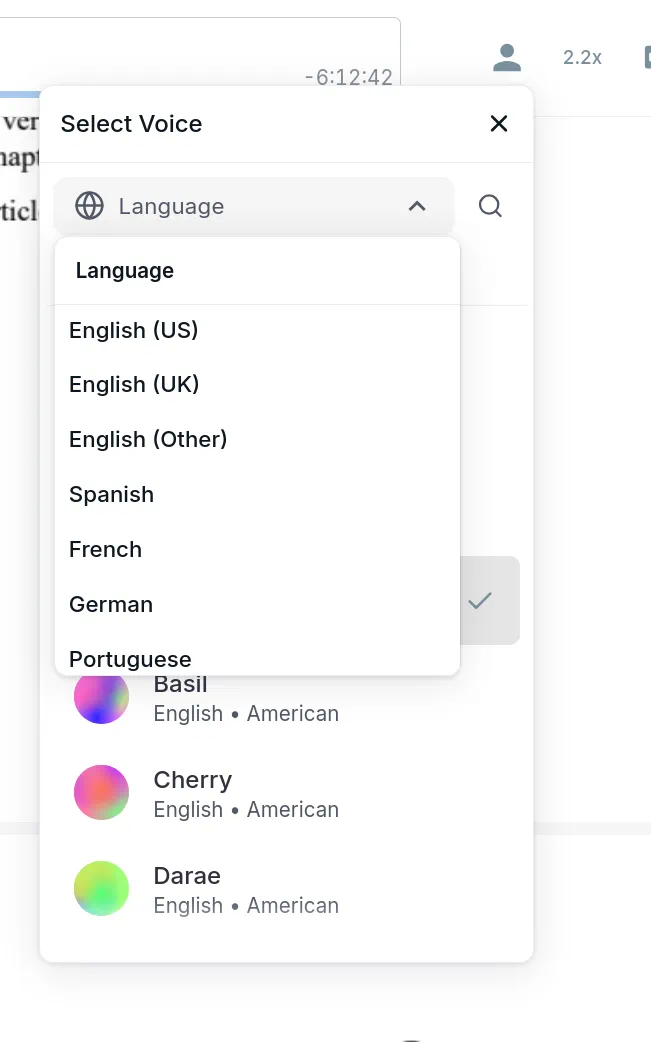
- Click the icon to open the Select Voice dropdown panel.
- Filter by Language: Click the Language Dropdown (featuring a Globe icon) to filter available voice models by language and regional dialect (such as British English vs. US English, or Spanish accents). Learn more about International Voices & Languages.
- Search and Preview: Use the search bar to search for specific voices by name or tag. Click the preview button on any voice card to hear a high-quality sample of the voice.
- Click on your preferred voice card to instantly apply the narrator to your current document.
2. Modify the Text-to-Speech Reading Speed
To speed up or slow down the reading tempo:
- Look at the playback controls in the bottom player toolbar.
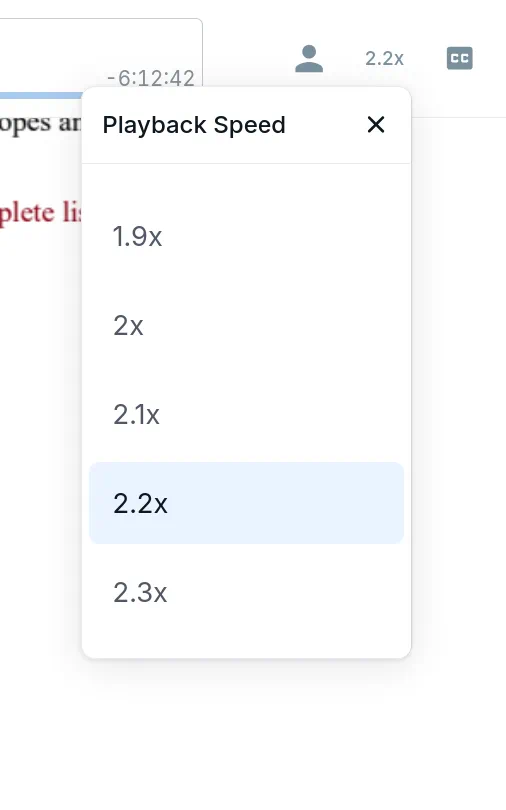
- Click the current speed multiplier button (such as 1x or 1.2x).
- Use the Speed Slider to dynamically adjust the reading speed in precise steps ranging from 0.5x (slower speed for dense studying) up to 3.5x (ultra-fast reading for rapid scanning).
- Select from the simplified preset speeds (such as 1x, 1.25x, 1.5x, 1.75x, or 2x) for quick speed adjustments.
- The player changes the tempo in real-time without distorting the voice.
Pro Tip: Keyboard Shortcuts for Desktop Playback
To keep your hands free and maintain deep focus while reading, the Audeus web player supports a full suite of desktop keyboard shortcuts:
- Play / Pause (Spacebar or Space): Instantly start or pause the audio narration.
- Skip Forward (Right Arrow or ArrowRight): Skip to the next sentence or text block and continue playing.
- Skip Backward (Left Arrow or ArrowLeft): Jump back to the previous sentence or text block and continue playing.
- Zoom In (Ctrl or Cmd + =): Zoom in on the document layout (for supported document formats).
- Zoom Out (Ctrl or Cmd + -): Zoom out of the document layout.
- Reset Zoom (Ctrl or Cmd + 0): Fit the document width to your browser screen.
Understanding Auto-Scroll Overrides
When playback is active, the Audeus Auto-Scroll feature keeps the currently read sentence perfectly centered in the middle of your screen. For more details, see our guide on Auto-Scroll Playback.
- To scroll manually: Simply move your mouse wheel, scrollbar, or trackpad. The web player will temporarily pause Auto-Scroll, allowing you to scan ahead or look back at notes without fighting the viewport.
- To resume Auto-Scroll: Click the floating Sync Arrow (reticle target icon) on the right side of the screen. The viewer will instantly snap back to the active reading highlight and continue following the audio automatically.
Universal Settings Cloud Sync
Every voice adjustment or reading speed modification you make in the web app is instantly synced to your Audeus user profile.
If you are logged into your Audeus account, your settings will persist across all platforms. For instance, if you set your reading preferences on desktop, they will automatically apply when you Adjust Voice & Speed on Mobile or customize settings using the Browser Extension.
Frequently Asked Questions
Can I set a default reading speed for all documents?
Yes. Any speed or voice change you make in the reader is saved to your account settings as your default preference, automatically applying to all documents you open in the future.
Why does the voice sound distorted when I speed it up?
Audeus uses advanced models that make it one of the clearest text-to-speech readers even at fast playback rates. However, if you experience distortion at speeds above 3.0x, we recommend experimenting with different voices in the library, as some voices naturally maintain clearer pronunciation at higher tempos.
How do I download voices for offline listening on Web?
The web player requires an active internet connection to stream AI voices. For offline listening (such as during commutes or flights), we recommend caching audio using the Audeus Android App or iOS app which support offline caching.
Can I reset the voice settings to default?
Yes. You can open the Voice Selection dropdown and select your original voice, or adjust the speed slider back to 1x (the default speaking rate).