Install Chrome Extension
The Audeus text-to-speech Chrome extension turns any webpage, Google Doc, or email into a high-fidelity listening experience right inside Google Chrome. Designed for students, researchers, and professionals, the extension lets you read faster, retain more information, and minimize screen fatigue by listening to web text read aloud by our hyper-realistic AI voices.
With native integrations for popular tools and real-time syncing with our Android App and iOS App, you can easily manage your reading library across all your devices.
How to Install and Pin the Chrome Extension
To use Audeus on any webpage, you first need to install the extension and pin it to your Google Chrome toolbar.
Step 1: Install from the Chrome Web Store
- Open your Google Chrome browser and visit the Audeus Chrome Web Store Page.
- Click the blue Add to Chrome button in the top right corner.
- In the permission dialog pop-up, click Add extension to confirm.
Step 2: Pin to your Toolbar (Crucial Step)
By default, Google Chrome hides new extensions inside the extensions menu. Pinning Audeus ensures the player control button is always visible:
- Click the puzzle piece icon (Extensions) in the top-right corner of your Chrome toolbar.
- Scroll down to find Audeus.
- Tap the pushpin icon next to Audeus. The blue Audeus logo will now permanently appear in your browser bar.
Step 3: Configure Browser Permissions (Recommended)
For the Audeus sidebar player to automatically load and read text on the web pages you visit, you must ensure the extension has proper site access permissions:
- Click the puzzle piece icon (Extensions) in the top-right corner of Chrome.
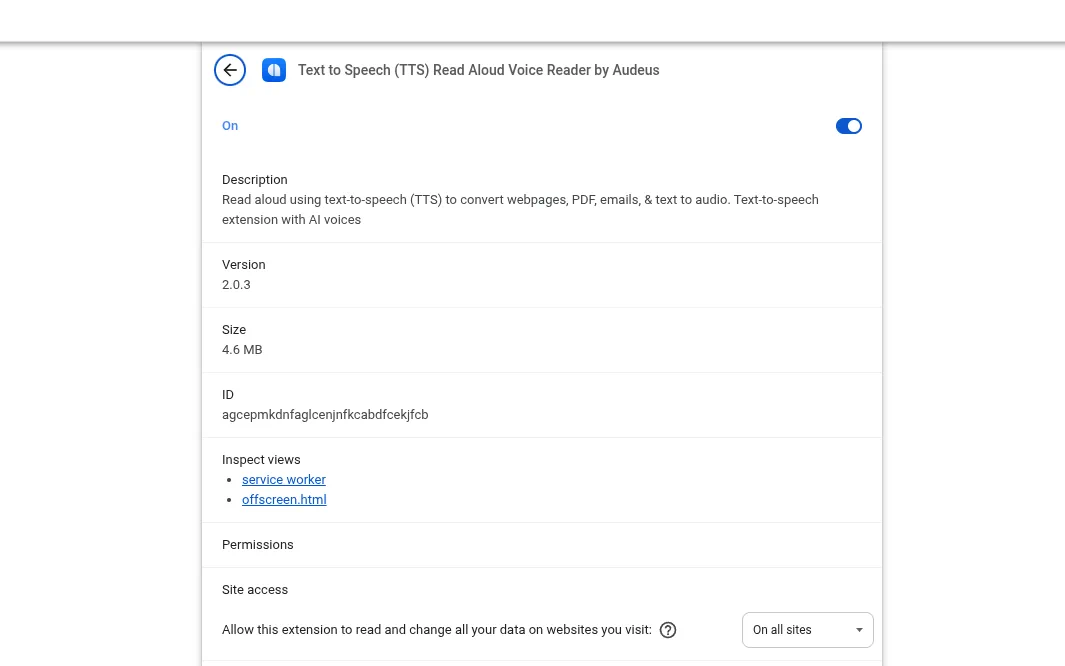
- Click the three vertical dots (kebab menu) next to Audeus and select Manage extension. (Alternatively, enter chrome://extensions in your browser address bar, locate Audeus, and click Details).
- Scroll down to the Site access section.
- Under Allow this extension to read and change all your data on websites you visit, select On all sites from the drop-down menu.
Selecting On all sites allows the Audeus floating pill to appear automatically on supported articles, making it easy to start listening instantly.
Getting Started: The In-Page Sidebar Player
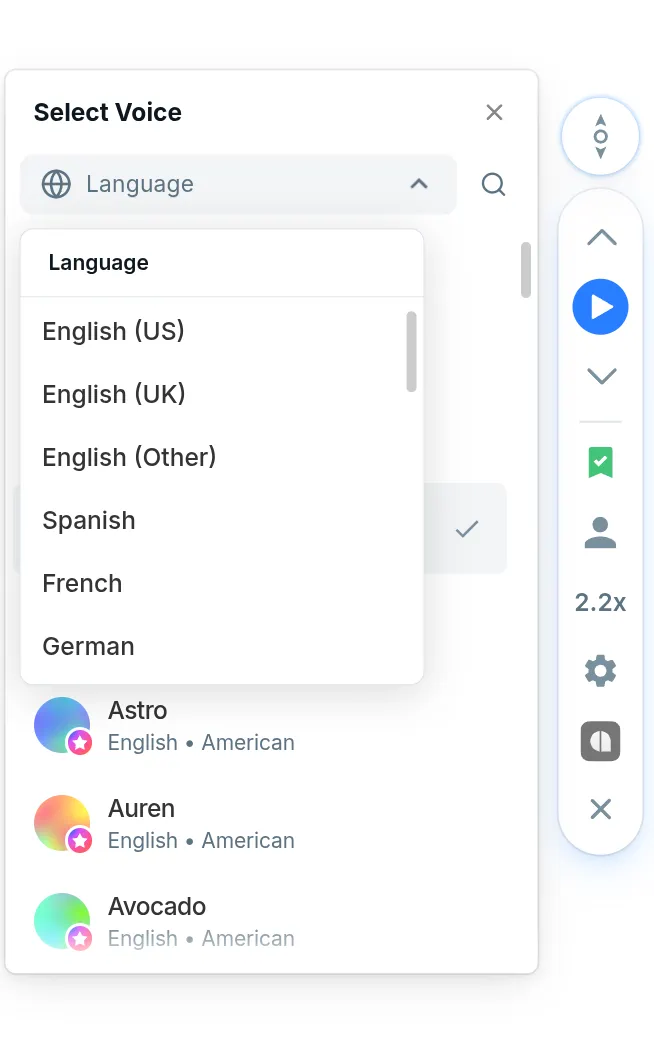
Once the extension is active, a small floating pill handle containing the Audeus logo will appear on the side of your web pages. Clicking this handle slides out the in-page player controls, allowing you to listen directly within the page layout.
- Expanded Sidebar Controls: Access play/pause, volume, and sentence skipping buttons.
- Text Highlighting: Web text is highlighted word-by-word and sentence-by-sentence in real-time as it is read aloud.
- Speed Controller: Adjust playback speeds up to 3.5x using the speed selector.
- Save to Library: Sync the page content instantly to listen on your mobile devices.
Core Features and Customizations
Audeus inserts a floating pill handle on the side of your web pages. Clicking this handle expands the full in-page player controls.
Click to Jump & Auto-Scroll
- Click to Jump: Turn this on in your settings to click on any sentence on a webpage and instantly start reading aloud from that exact spot.
- Auto-Scroll: Enable this feature to have the browser automatically scroll the page down as it reads, keeping the active highlighted text centered on your screen.
Text Highlighting Styles
Read along with the narrator using our dual-mode highlights:
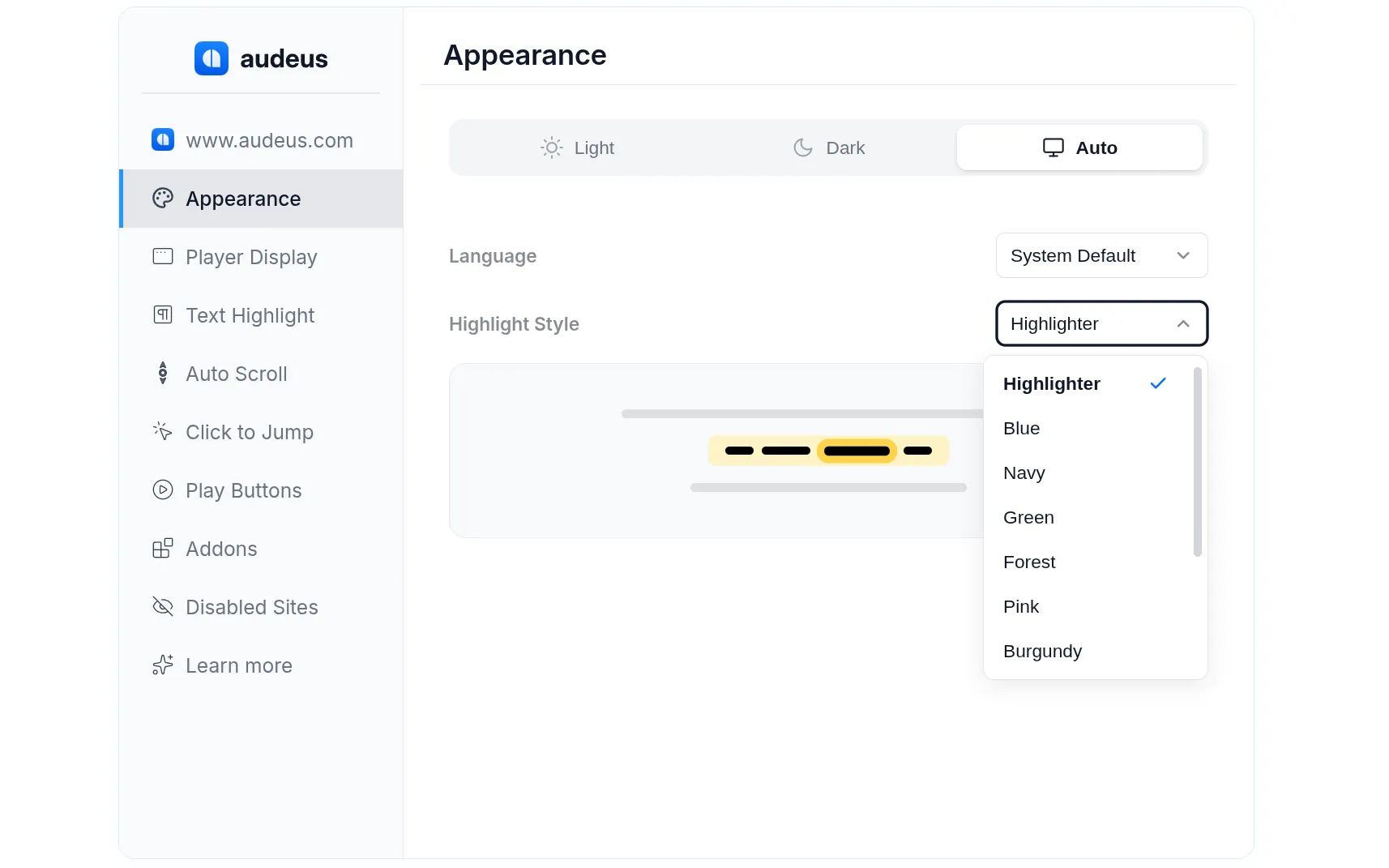
- Word & Sentence Highlighting: Select your favorite color highlight style (such as Forest, Navy, Plum, Burgundy, or Orange) from the Appearance settings tab.
- Theme Modes: Choose between Light, Dark, or System/Auto themes to match your browser environment.
Specialized Website Integrations (Add-ons)
Unlike basic screen readers, Audeus features custom integration overlays for popular web applications, allowing it to parse complex page layouts without reading navigation menus or sidebar ads:
- Google Docs: Integrates natively inside your editing window, highlighting and reading your documents seamlessly.
- Gmail & Outlook: Renders play buttons next to incoming emails so you can listen to your inbox.
- AI Chatbots (ChatGPT & Gemini): Adds voice icons directly next to AI responses, letting you listen to chatbot outputs instantly.
- Reddit: Cleanly reads threads, posts, and comments in sequence.
Frequently Asked Questions
How do I disable Audeus on a specific website?
If you don't want the Audeus floating pill to appear on a specific domain (such as online banking or dashboard tools):
- Click the Audeus icon to open the settings popup.
- Go to Disabled Sites.
- Toggle off Audeus for the current site or manually add the domain URL to the exclusion list.
Does Audeus read the entire webpage without me selecting any text?
Yes! You do not need to highlight or copy-paste anything. When you click play, Audeus automatically finds and reads the main article or blog post text while ignoring sidebar widgets, menu buttons, and ads. This lets you listen to the entire page hands-free.
Can I use Audeus inside Google Docs?
Yes, absolutely! Audeus has a dedicated integration overlay built specifically for Google Docs. When you open any file in Google Docs, the Audeus player sidebar will load inline, highlighting and reading your text seamlessly without disrupting your formatting.
Does my listening progress sync across devices?
Yes! When you click Save to Library on the Chrome extension, the parsed article text is uploaded to your cloud account. You can instantly pick up where you left off on the Audeus Android App or Audeus iOS App with synchronized word-by-word position memory.
Do I need a paid account to use the Chrome extension?
Audeus offers free access to high-quality standard voices. Premium, ultra-lifelike AI voices have a daily limit for free accounts. You can upgrade to Audeus Pro directly through the popup menu to get full access to premium voices without daily caps.
Install Audeus on Other Browsers
If you use multiple web browsers, you can install the Audeus extension across other platforms to keep your library and reading preferences synced: