Adjust Voice & Reading Speed (Extension)
The Audeus browser extension lets you listen to news articles, emails, online PDFs, and Google Docs read aloud directly in your browser. With a lightweight, floating widget menu, you can select customized AI narrator voices and adjust reading speeds on the fly without interrupting your workflow.
If you have not installed the extension yet, you can install it using our guides:
- Install Audeus on Google Chrome
- Install Audeus on Microsoft Edge
- Install Audeus on Mozilla Firefox
- Install Audeus on Apple Safari
How to Adjust Voice and Speed Settings in the Extension
Once installed, the Audeus player appears as a floating play button on the margin of web pages. Tapping the play button expands the floating widget controls.
1. Changing the AI Narrator Voice
To select a different speaking voice for your browser reader:
- Open the Audeus floating widget on any web page.
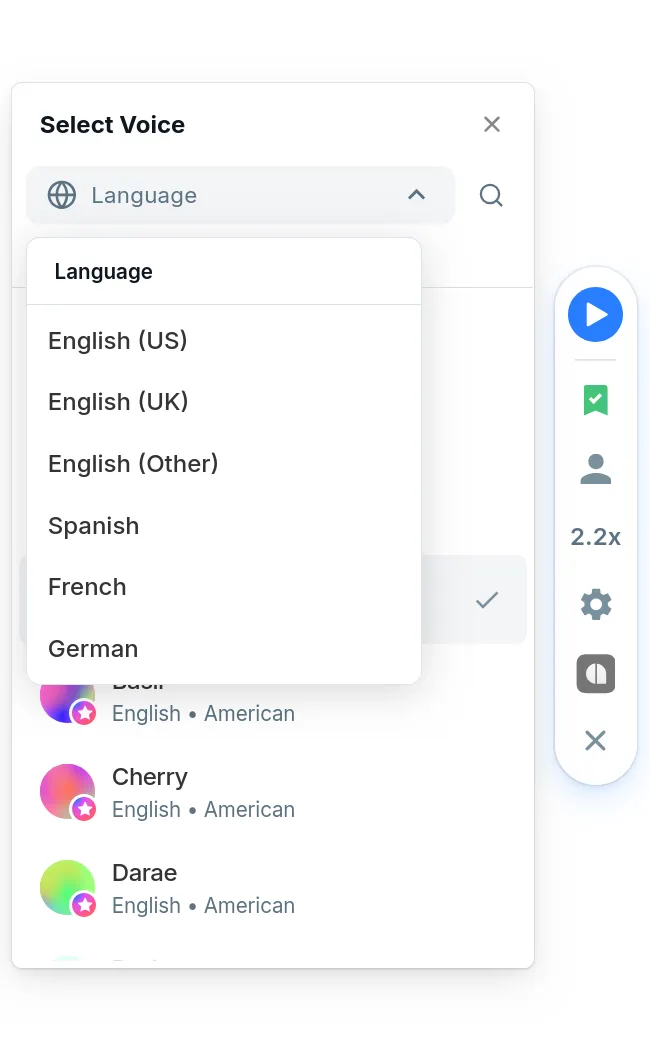
- Locate the Change Voice button (represented by the silhouette of a person icon) in the controls bar.
- This action opens the Select Voice menu dialog.
- Search and Filter: Use the search bar at the top to look up a voice by name, or click the language filter pills to filter available models by dialect (such as English, Spanish, or French).
- Tap the play icon next to any voice card to hear a brief audio sample.
- Click on your preferred voice card to apply the narrator instantly to the page.
2. Modifying the Reading Speed Multiplier
To speed up or slow down the playback tempo:
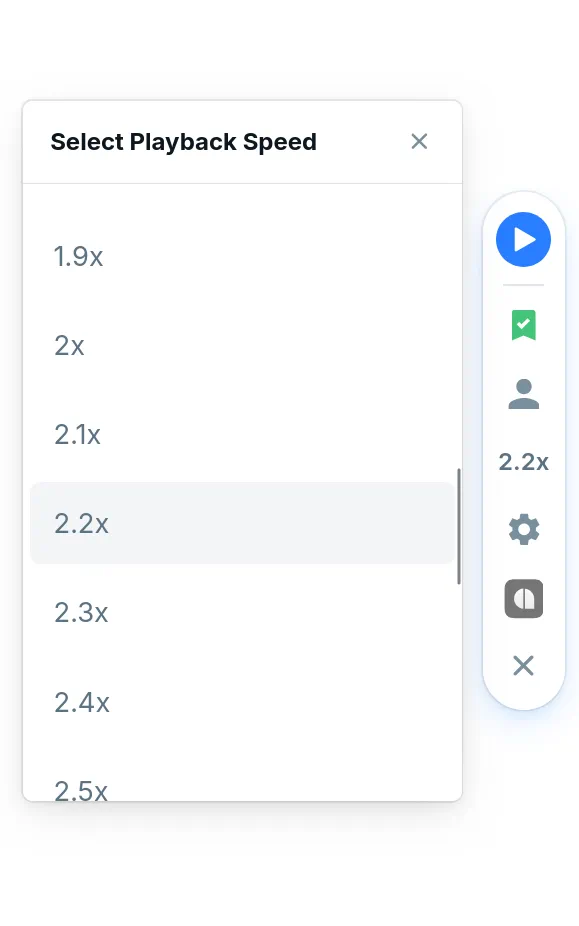
- In the floating widget controls bar, locate the Speed multiplier button (which displays your current playback rate, such as 1x or 1.5x).
- Tap the speed button to open the Select Playback Speed list menu dialog.
- Click on any speed from the scrollable list of pre-defined speed options, ranging from 0.5x (slower speed for study retention) up to 3.5x (ultra-fast speed reading).
- The player will instantly update the tempo of the active narrator.
Managing Extension Keyboard Shortcuts
To control the player hands-free without using your mouse, you can configure browser keyboard shortcuts:
- Google Chrome: Enter chrome://extensions/shortcuts in your URL address bar to manage shortcuts (such as set play/pause or adjust speech rate).
- Microsoft Edge: Enter edge://extensions/shortcuts in your browser URL bar.
- Mozilla Firefox: Go to about:addons, click the gear icon in the top right, and select Manage Extension Shortcuts.
- Apple Safari: Configure keyboard overrides natively under macOS System Settings or within Safari Extension Settings.
Domain Settings and Hiding the Widget
If the floating Audeus pill widget gets in the way of specific tools or banking portals, you can easily manage its visibility:
- Click the Audeus logo inside the widget to open settings.
- Toggle the option to hide or disable the floating widget for that specific website domain.
Cloud Preferences Sync
When you are logged into your Audeus account, all of your settings sync automatically. Any changes you make to your narrator voice or speed multiplier in the browser extension will instantly save to your profile and apply the next time you load the desktop Web Reader or open the Mobile App.
Frequently Asked Questions
Is an account required to use the browser extension?
No, you do not need an account to listen to web pages or customize settings in the browser extension. However, to access our premium library of AI narrator voices and automatically sync your speed and voice preferences across other devices, you will need to sign in to your Audeus account.
Can I use the Audeus browser extension for free?
Yes. You can use the extension completely for free. While advanced cloud-based AI voices may have daily limits for free accounts, the extension's built-in playback option provides 100% unlimited reading usage at no cost.
Are there voices that work without internet?
Yes. If you lose your internet connection, the extension will automatically switch to offline voice playback. To listen to cloud AI voices offline, we recommend caching documents beforehand in the Mobile App or reading documents inside the Web Reader.