Listen to AI Chat Responses
Audeus goes beyond static reading assistance by making your chat logs completely audio-friendly. While other document tools simply generate text that you have to stop and read, Audeus allows you to play ai chat answers aloud with synchronized tracking.
You can use this tool to listen to text to speech chat responses during hands-free study sessions, creating a seamless workflow between reading and conversation.
The AI Conversation TTS Player
Unlike basic tools that play background audio without visual alignment, Audeus embeds a dedicated ai conversation tts player directly at the bottom of the chat panel.
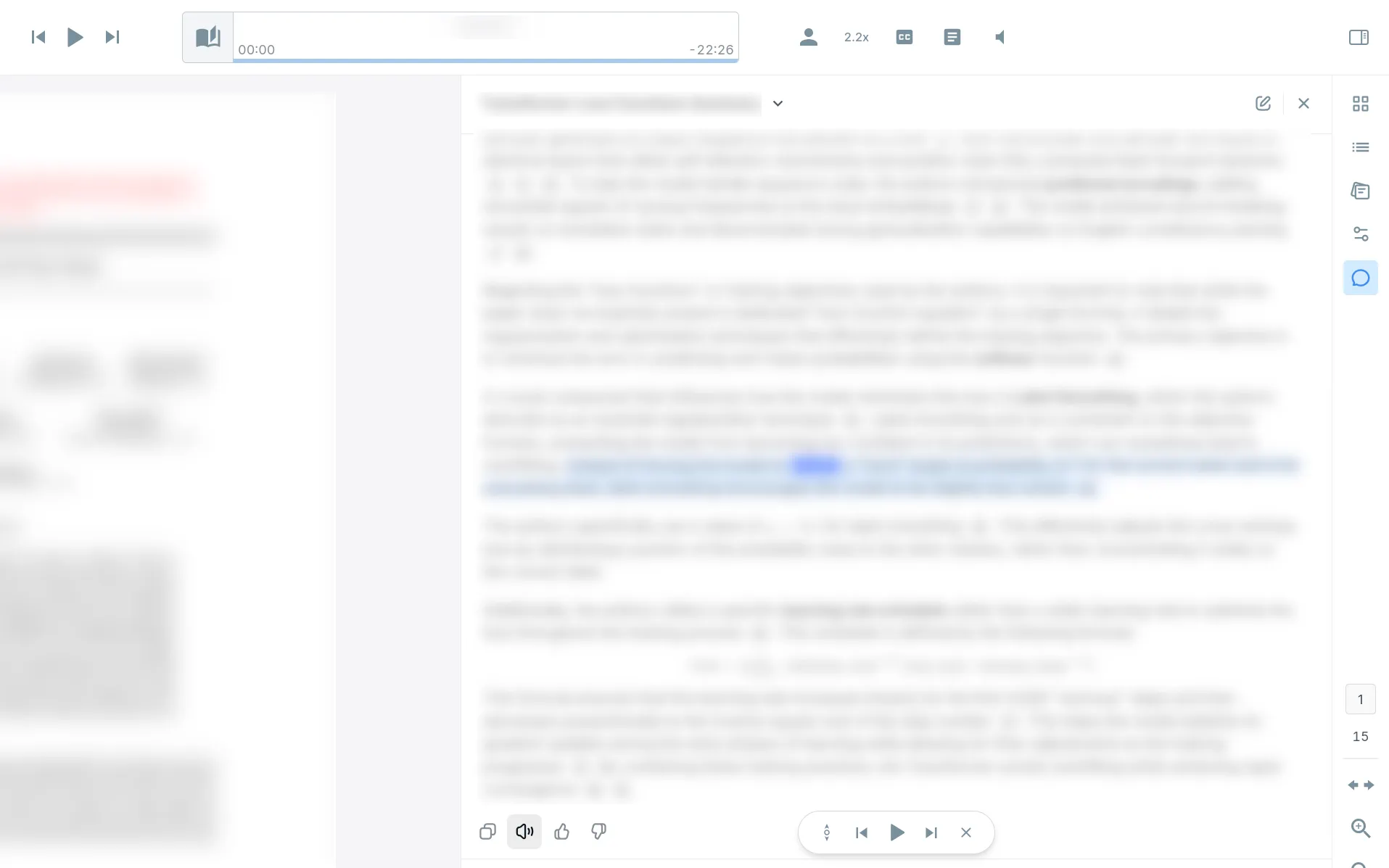
When you ask a question in the Web Reader and click the speaker icon under the AI's response, the Chat MiniPlayer bar opens. This bar gives you complete control over the audio:
- Play and Pause: Toggle the audio narration on or off instantly.
- Sentence Skipping: Click the Next or Previous arrow buttons to jump forward or backward sentence-by-sentence inside the message.
- Sync Snapping: Tap the Sync button to snap the view back and focus on the currently playing sentence bubble if you scroll away.
- Close Player: Click the Close button to stop the narration and dismiss the player bar.
This transforms the chat panel into an audible ai chat assistant that adapts to your environment.
Dual-Layered Highlighting & Click-to-Read
To ensure accessibility, Audeus carries over its visual highlighting systems to the chat interface. This layout provides word level highlighting ai chat overlays to guide your eyes:
- Sentence and Word Highlighting: The active sentence is highlighted for context, and the exact word being spoken is highlighted in real-time.
- Interactive Click-to-Read: Clicking any word inside the AI chat bubble instantly seeks and jumps the audio player to that word, allowing you to re-listen to specific explanations.
- Shared Audio Settings: The narrator speed and dialect you select in the main player apply automatically to the chat, functioning as a synchronized text to speech reader for chat answers.
Audeus can narrate ai responses pdf reader layouts automatically, letting you listen to long-form explanations while keeping your focus. To learn more about setting up your visual tracking parameters, view our guide on Highlight Customization.
Frequently Asked Questions
Can I change the narrator voice for the AI Chat?
Yes, the chat narrator automatically matches the speed and voice profile you selected for the main document player. You can modify these settings anytime in the main controls menu.
Can I click on any word inside the chat bubble to jump playback?
Yes, Click-to-Read is fully supported in message bubbles. Simply click any word in the chat response to jump the narrator to that exact sentence.
Does the AI player support auto-scrolling?
Yes, as the narrator reads, the chat window scroll updates automatically to keep the active sentence highlight visible. You can toggle other visual settings in the Customize Reader Settings dashboard.
How do I start the chat reader?
Once the assistant finishes writing a response, click the speaker play button directly below the chat bubble. This initializes the player and begins reading the text aloud.
Can I write complex queries and have them read?
Yes, you can ask the narrator to speak ai document summaries or explain complex sections. For tips on structuring your queries, see our guide on Best AI Prompts for Research & Studying to build a powerful hands free study voice assistant workflow. You can also combine these chats with our guides on how to Chat with Files & AI Summaries or configure Smart Skips to optimize your document playback.