Highlight, Comment & Draw on Documents
Audeus provides an active reading environment designed to turn standard document reading into a highly interactive, digital study session. With our robust document annotation tools, you can annotate pdf files, text to speech documents, highlights, and comments, turning any PDF or Word document into a personalized learning resource.
Whether you are using a stylus, Apple Pencil, or mouse, your markups sync across all your devices and integrate with our AI Chat assistant.
Active Markup on the Web Reader (Desktop)
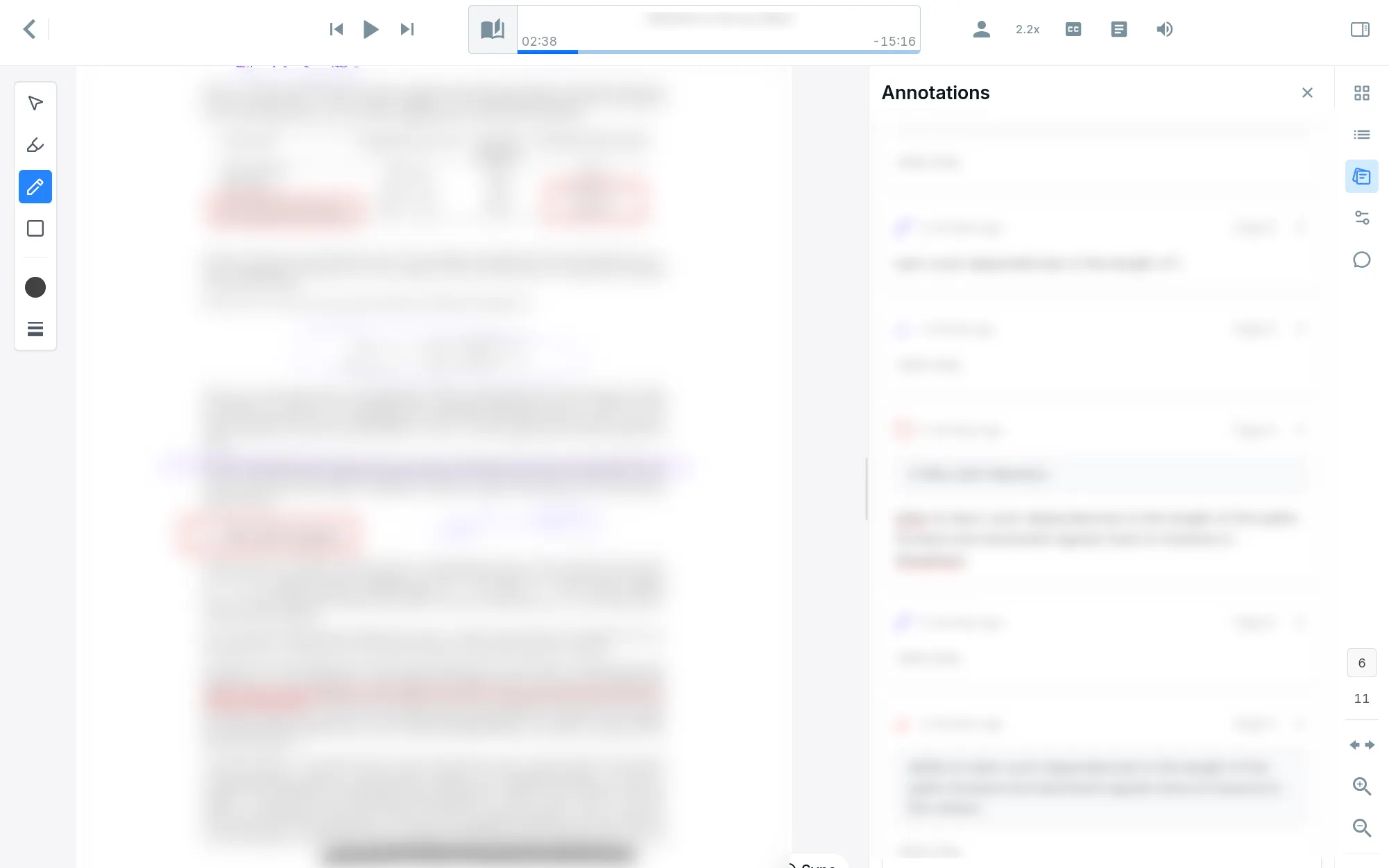
The desktop Web Reader provides a full suite of visual markup options to support active reading pdf notes:
Creating Annotations
- Select a Tool: Click one of the annotation tool mode icons located in the top toolbar of the reader:
- Highlighter: Used for selecting and color-coding text.
- Marker (Pen): Used for freehand lines, sketches, or margins.
- Rectangle (Shape): Used to box diagrams, formulas, or paragraphs.
- Apply to Document: Click and drag your cursor, stylus annotation voice reader, or trackpad over the document text or canvas.
- Add Comment Notes: Once you release the cursor, the floating Annotation Context Menu will automatically appear above your markup. Click the Add Note chat bubble icon to open the note editor, type your comment, and click Save.
Viewing and Managing
- Page Overlays: Your highlights, drawings, and shapes appear as visual layers directly on the reading page. You can toggle their visibility inside the reader settings panel.
- Aggregated Sidebar: Open the Annotations tab in the right-hand side menu to view all your notes sorted by page number. The sidebar lists timestamps, custom comments, and automatically extracted text quotes from your highlights. Clicking any annotation card in the sidebar instantly scrolls the reader to focus on and highlight that item.
- Editing Markups: Click any existing highlight or drawing on the page to change its color, copy the highlighted text to your clipboard, add or edit notes, or delete the annotation entirely.
Interactive Highlights on the Mobile App
The mobile application is optimized for reading on the go, providing a streamlined experience to highlight and comment pdf reader documents:
Creating Highlights and Notes
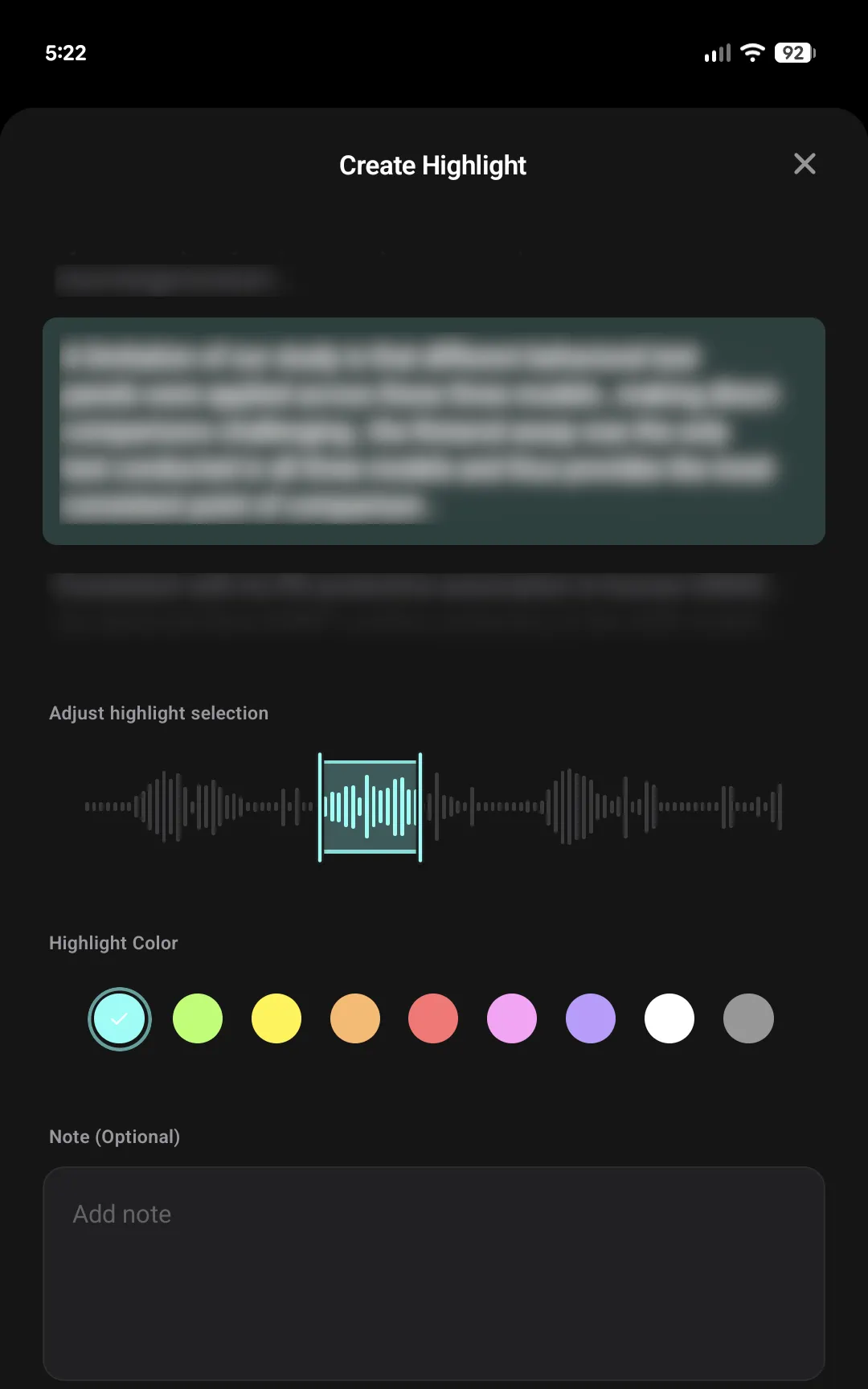
- Open the Creator: Tap the Add Annotation button (represented by a pen and highlighted circle icon) on the reader control bar. This automatically pauses the voice reader and opens the annotation bottom sheet.
- Select Text Bounds: The sheet displays the surrounding sentences. Drag the left and right handles of the waveform range slider at the bottom of the screen to adjust the highlight selection boundaries in real-time.
- Save Your Markup: Select a color preset circle, type your thoughts in the optional Note text field, and tap Save.
- Drawing Tool Availability: Drawing figures, freehand sketches, and shape markups are features exclusive to the desktop web application and are not supported for creation on mobile.
Viewing and Managing
- Visual Display: Text highlights appear on the document page. Freehand drawings and shapes created on desktop will display as static overlays on the mobile screen.
- Annotations Index: Tap the Index button in the mobile toolbar and select the Annotations tab to view your complete list of highlights and notes. Tapping any item in this list snaps the viewer directly to the corresponding page.
- Download mobile apps: Install Audeus on your mobile device by visiting the iOS Download Guide or the Android Download Guide.
Chatting with Annotations and AI
One of the most powerful features of Audeus is the ability to chat with pdf annotations ai. Your highlights, drawing details, and custom comments are automatically included in the AI assistant's context.
Real-World Study Prompts
You can ask the AI assistant questions about your annotations using natural study prompts:
- Summarize all of my highlights in this chapter into a quick study guide.
- Create a five-question practice quiz based on the key terms I highlighted.
- Review my comments and explain the difference between the first and second highlighted arguments.
Interactive Reference Links
When the AI assistant answers your questions, its responses will generate clickable reference links (such as Annotation 1). Tapping or clicking these links will automatically scroll your document view to focus on and highlight the referenced drawing or quote, allowing you to quickly cross-reference sources.
To learn more about navigating document text via interactive controls, visit our guide on Click-to-Jump Navigation.
Frequently Asked Questions
Does Auto-Scroll work when highlighting text?
Auto-scrolling and audio playback pause automatically the moment you open the annotation controls or begin drawing. This ensures you can take notes or highlight at your own pace. Once you save or close the menu, clicking the Sync reticle or pressing play will resume the voice playback.
Can I view drawings on my mobile device?
Visual freehand drawings and shapes created on the Web Reader display as static overlays on your mobile screen. While you cannot create new freehand drawings on mobile, you can view existing ones and read their associated notes.
Do annotations sync across my devices?
Every highlight, comment, and drawing is synchronized to your Audeus cloud account. Your markups are immediately accessible whether you are reading on the Web Reader, using the browser extension, or studying on the mobile app.
Will visual highlights interfere with the voice reader?
All highlights and shapes act as visual overlays and will not disrupt the speech player. The AI voice will continue to read the text smoothly, bypassing url elements and footprints based on your Smart Skips preferences. To customize the reading word tracker, see our guide on Highlight Customization.